

Mac Emoji Keyboard Shortcut: Instant Access Guide
Stop Searching for Emojis: One Shortcut Changes Everything
Every Mac user has been there. You are typing a message, email, or document and suddenly need the perfect emoji to express yourself. The old way meant navigating through menus, opening system preferences, or worse, giving up entirely. But there is a faster solution that millions of Mac owners use every single day. This guide reveals the universal keyboard shortcut that opens the emoji picker in under one second, regardless of which application you are using. Whether you are on macOS Ventura, Monterey, or an older version, this trick works instantly and will transform how you communicate.
What Exactly Is the Mac Emoji Picker Shortcut?
The emoji picker is a built-in macOS feature that displays a grid of thousands of emojis organized by category. Apple introduced this tool as part of macOS Sierra in 2016, and it has become an essential part of daily computing for millions of users worldwide. Studies show that over 5 million emojis are sent via digital messaging every minute globally, making quick emoji access increasingly important for personal and professional communication.
The universal shortcut to access this feature is Control + Command + Spacebar. When you press these three keys simultaneously while any text field is active, the emoji picker appears immediately at your cursor location. This works in Apple Mail, Messages, Notes, Safari, third-party apps, and virtually any application that accepts text input. The picker hovers right where you need it, allowing rapid selection without switching windows or navigating menus.
Unlike many system features that vary between operating systems, Apple has maintained this shortcut consistently across all recent macOS versions. Whether you have a 2019 MacBook Pro or the latest Mac Studio with M2 Ultra chip, the process remains identical. This consistency makes it one of the most reliable shortcuts in the entire macOS ecosystem.
How to Use the Emoji Picker Shortcut Effectively
Mastering the emoji picker shortcut involves more than just pressing three keys. The timing and context matter significantly for optimal results. First, ensure your cursor is placed inside a text input field before pressing the combination. This can be a message box, email body, search bar, or document area. The picker will appear precisely where your text cursor sits, and clicking an emoji will insert it directly at that position.
The emoji picker interface offers several features beyond basic selection. You can search for specific emojis using keywords, browse through recent selections, or navigate categories using the sidebar icons. Recent emojis appear first, which accelerates workflow for users who repeatedly employ the same expressions. The search function supports natural language queries like “laughing,” “thumbs up,” or “celebration” to find appropriate emojis quickly.
For power users, the picker remembers your most frequently used emojis over time. This machine learning feature adapts to your personal usage patterns, surfacing your favorites automatically. Some users report that their top ten emojis appear within the first two rows after just two weeks of regular use.
- Always click inside a text field before pressing the shortcut
- Use the search bar for quick emoji lookup by keyword or emotion
- Check the Recents section for frequently used expressions
- Press Escape or click outside the picker to dismiss it without selecting
- Use arrow keys to navigate through emoji categories efficiently
- Double-click an emoji to select and auto-close the picker instantly
Alternative Methods and Modern Mac Features
While the keyboard shortcut remains the fastest method, newer Macs offer additional options worth knowing. Apple Silicon Macs (M1, M2, and M3 chips) include a dedicated Globe key that serves multiple functions. In emoji contexts, pressing this key can also trigger the picker, though this behavior depends on your keyboard settings and may conflict with input source switching.
To configure the Globe key for emoji access on compatible systems, navigate to System Settings > Keyboard and look for the option to use the Globe key for emoji selection. This customization appeals to users transitioning from iPad or iPhone, where similar key functionality exists. The setting ensures the Globe key opens the emoji picker instead of switching keyboard layouts when pressed.
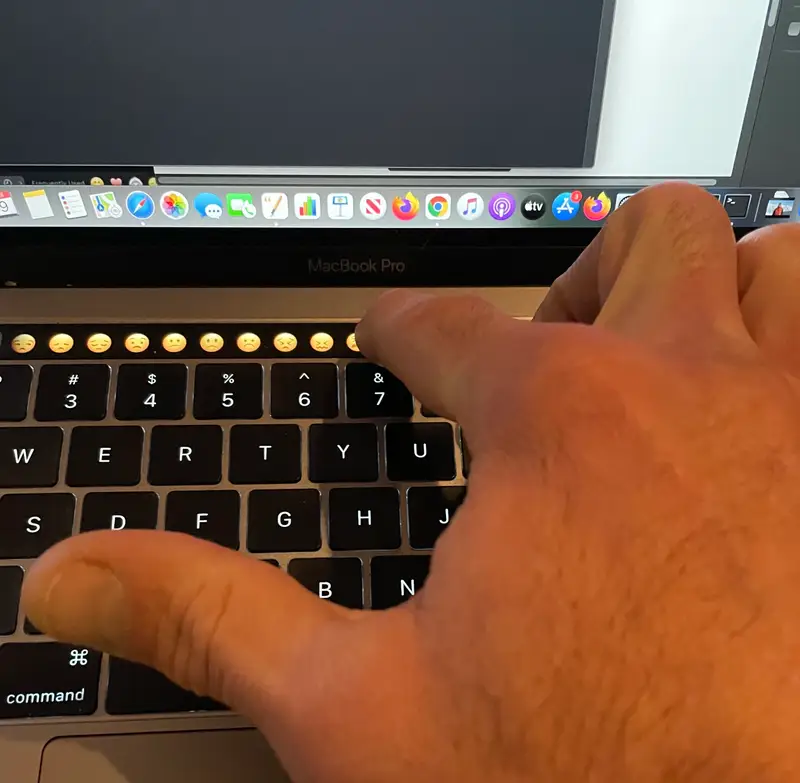
Touch Bar MacBooks have an additional option where the Control + Command + Space shortcut brings up an expanded emoji palette directly on the Touch Bar. This provides visual access without opening the full picker window, which some users find faster for repeated emoji insertion during messaging sessions.
- Check System Settings to remap the Globe key if needed
- Touch Bar users can access emojis directly from the bar interface
- The Trackpad Touch Emoji option provides another access method
- Dictation commands cannot activate the emoji picker directly
- External Windows keyboards work with this shortcut using PC-style layout
- Bluetooth keyboards maintain full functionality for emoji access
Best Practices for Maximum Productivity
Optimizing Your Emoji Workflow
Integrating the emoji shortcut into your daily routine requires building muscle memory for the key combination. Practice makes perfect here. Start by consciously using the shortcut in place of any other emoji access method for two weeks. After this adjustment period, the motion becomes automatic, and you will wonder how you ever managed without it.
Consider creating a cheat sheet or reminder note during your initial learning phase. Place this somewhere visible until the combination becomes second nature. Many users report that 14 days of consistent practice is enough to internalize the shortcut permanently. The investment of a few minutes daily quickly pays dividends through time saved across thousands of future typing sessions.
Organization matters within the emoji picker itself. Spend time exploring the category structure during your first few uses. Understanding where specific emoji groups live (animals, food, activities, objects) speeds up selection significantly. The smiley and people section alone contains over 400 variations, so knowing the exact category for your needs prevents endless scrolling.
- Commit to using only this shortcut for two weeks to build consistency
- Create a visual reminder until the combination becomes automatic
- Learn the category organization to reduce search time
- Use search terms efficiently: “party” finds celebration emojis faster than scrolling
- Bookmark your favorites by using them frequently for quick access
- Combine with text snippets for common phrases containing emojis
Common Mistakes and Important Details
Several common errors prevent users from successfully accessing the emoji picker. The most frequent mistake involves pressing the keys in the wrong sequence or with insufficient simultaneity. The three keys must be pressed nearly simultaneously, though brief millisecond delays between each key still work fine. If the picker fails to appear, try pressing more deliberately with all three fingers making contact at once.
Another frequent issue relates to keyboard layout differences. Users with non-US keyboards, particularly those using British, European, or Asian layouts, may find that certain key positions differ. The shortcut still functions identically, but the physical keys may appear in different positions or have alternate labels. Windows-style keyboards connected to Mac also work, though the key labels may not match exactly.
Some third-party applications block system-wide keyboard shortcuts intentionally. This security feature prevents conflicts with the application’s own shortcuts. If the emoji picker fails to appear in a specific app, try the same method in Finder or Notes to confirm the shortcut itself works. In rare cases, accessibility settings or third-party keyboard utilities can interfere with normal operation.
Understanding these potential obstacles helps troubleshoot issues quickly when they arise. In most cases, the problem stems from a simple misunderstanding about timing or keyboard focus rather than a system-level issue.
Frequently Asked Questions
What is the universal keyboard shortcut for emojis on Mac?
Press Control + Command + Spacebar simultaneously in any active text field. This opens the emoji picker instantly on any Mac running macOS Sierra or later, including all current macOS versions like Ventura, Monterey, and Big Sur.
Does this shortcut work on all Mac models and macOS versions?
Yes, this shortcut works universally across every Mac regardless of age, chip type, or macOS version. It functions on Intel-based Macs, Apple Silicon devices (M1, M2, M3), and all supported macOS releases from Sierra onward.
Can I change or reassign this keyboard shortcut for the emoji picker?
Apple does not provide a direct option to change the emoji picker’s keyboard shortcut through standard System Settings. However, third-party keyboard utilities may offer customization. The Globe key can be configured in Keyboard settings to open the emoji picker instead of switching input sources on supported Macs.
Why is my keyboard shortcut not working on certain applications?
Some applications intentionally block system-wide keyboard shortcuts to prevent conflicts with their own command bindings. Try the shortcut in Finder, Notes, or Safari to verify it functions correctly. If it works elsewhere, the specific application is likely blocking it.
FAQ
What is the universal keyboard shortcut for emojis on Mac?
Press Control + Command + Spacebar simultaneously in any active text field. This opens the emoji picker instantly on any Mac running macOS Sierra or later, including all current macOS versions like Ventura, Monterey, and Big Sur.
Does this shortcut work on all Mac models and macOS versions?
Yes, this shortcut works universally across every Mac regardless of age, chip type, or macOS version. It functions on Intel-based Macs, Apple Silicon devices (M1, M2, M3), and all supported macOS releases from Sierra onward.
Can I change or reassign this keyboard shortcut for the emoji picker?
Apple does not provide a direct option to change the emoji picker’s keyboard shortcut through standard System Settings. However, third-party keyboard utilities may offer customization. The Globe key can be configured in Keyboard settings to open the emoji picker instead of switching input sources on supported Macs.
Why is my keyboard shortcut not working on certain applications?
Some applications intentionally block system-wide keyboard shortcuts to prevent conflicts with their own command bindings. Try the shortcut in Finder, Notes, or Safari to verify it functions correctly. If it works elsewhere, the specific application is likely blocking it.
Read the full guide: How to Get Emojis on Your Mac: A Complete Guide


