

iPhone “Photos Will Be Deleted” Spam: How to Remove It from Calendar & Email
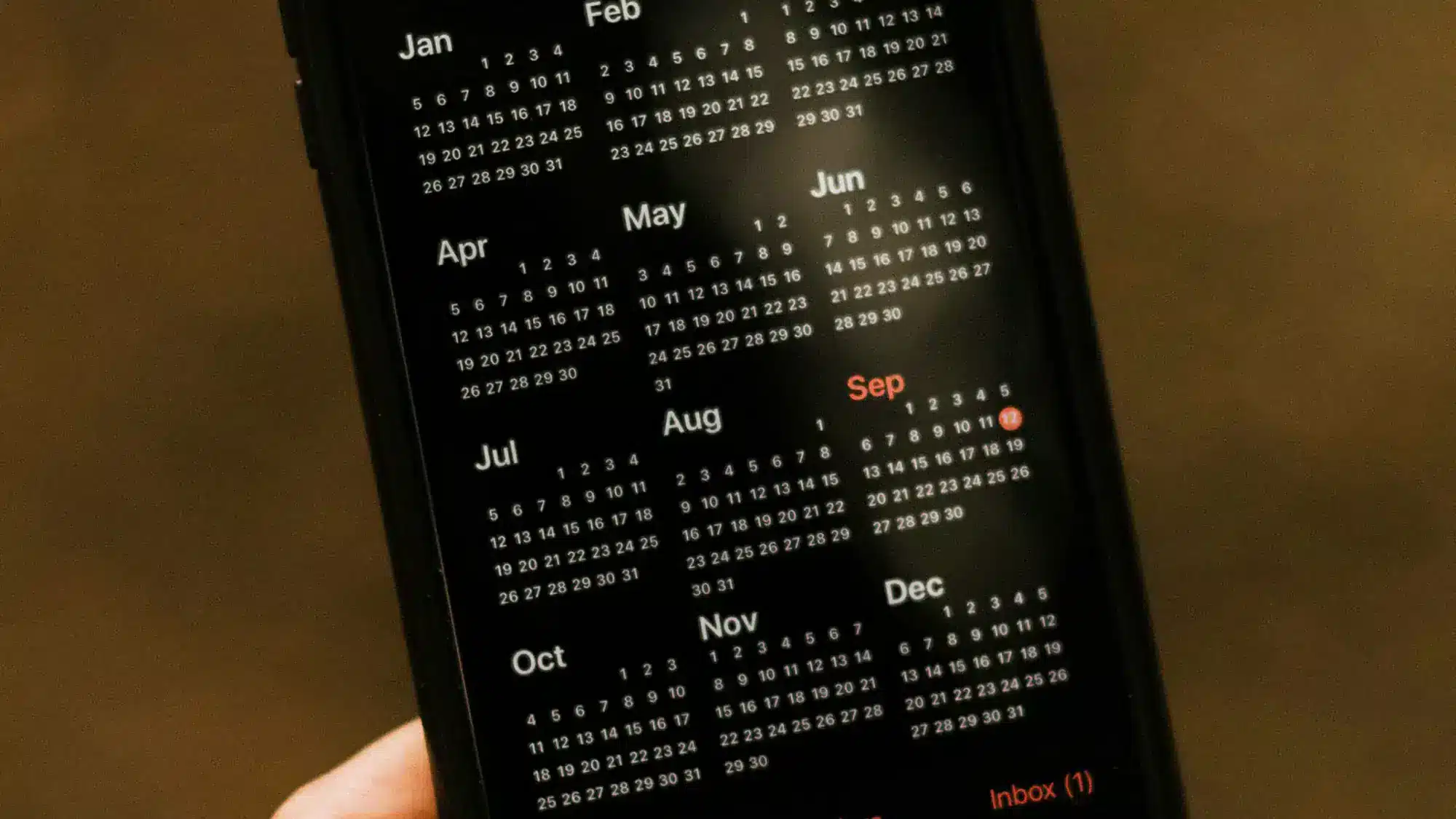
Seeing a threatening alert like “Last warning: all your emails will be removed” or “All photos will be deleted” in your iPhone’s Calendar or Mail can be frightening. These messages are phishing scams designed to trick you into clicking malicious links.
The important thing to know is that this is a empty threat. Your data is safe, and the message is not from Apple. Here’s a clear, step-by-step guide to remove this spam and secure your device.
How to Remove Spam Calendar Events & Emails
Follow these methods to clean up your iPhone. Start with the first one for the fastest solution.
Method 1: Disable & Re-enable the Affected Calendar (Fastest Fix)
This method instantly clears all spam events from a specific account.
-
Go to Settings > Calendar > Accounts.
-
Tap the email account syncing the spam (e.g., iCloud, Gmail, Outlook).
-
Toggle the “Calendars” switch OFF.
-
The spam will immediately vanish. You can safely toggle Calendars back ON after a minute.
Method 2: Delete the Source Spam Email
The calendar spam is often triggered by a malicious email. Stop it at the source.
-
Open your Mail app and go to your Junk or Spam folder.
-
Find the suspicious email with the threatening subject.
-
Delete it immediately without opening. Opening it can confirm your email is active.
Method 3: Manually Delete Individual Calendar Events
If you only have a few spam events, remove them one by one.
-
Open the Calendar app.
-
Tap the spam event.
-
Select “Delete Event” or “Decline”. This action is safe and will not trigger malicious links.
Method 4: Check for Malicious Calendar Subscriptions
Sometimes, the spam comes from a subscription you accidentally accepted.
-
Go to Settings > Calendar > Accounts.
-
Look under “Subscribed Calendars”.
-
Tap any suspicious calendar and select “Delete Account” to remove it.
FAQ: Your Questions Answered
Q: Is it safe to delete these calendar events?
A: Yes. Simply deleting the event is safe. The danger is in clicking links inside the event details.
Q: Will my photos and emails actually be deleted?
A: No. These are empty threats designed to create panic. Apple will not send warnings this way. Your data is secure as long as you do not click any links.
Q: How can I prevent this in the future?
A: Be cautious with links from unknown senders. You can adjust calendar settings to not add invitations automatically by going to Settings > Calendar > Sync and selecting “Events from the last 2 weeks” instead of “All Events.”
Summary: Protect Your iPhone from Spam
-
Don’t Panic: The threat is not real.
-
Disable Calendars: Toggle the affected account off and on in Settings for a quick cleanup.
-
Delete the Source: Remove the spam email from your Junk folder.
-
Check Subscriptions: Remove any unknown calendars in “Subscribed Calendars.”
By following these steps, you can efficiently eliminate these annoying spam attacks and continue using your iPhone with peace of mind.


