How to Undo in Apple Notes on iPhone, iPad, and Mac
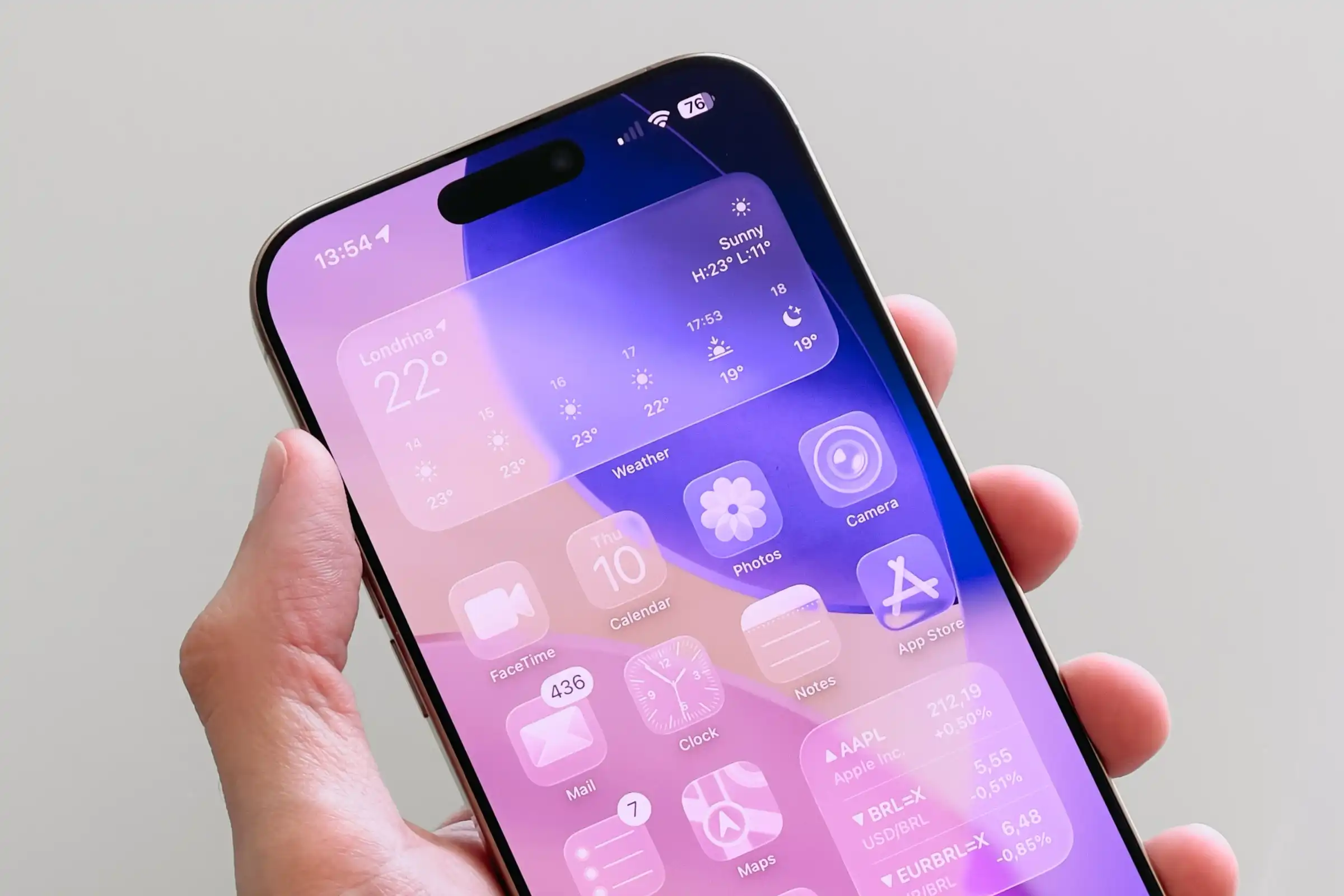
Apple Notes is a powerful tool for capturing ideas, lists, and documents across all your devices. Its simplicity is a key feature, but accidental edits can happen to anyone. Knowing how to quickly undo a mistake is essential for a frustration-free experience. Fortunately, Apple provides several intuitive methods to reverse your last action instantly.
Multiple Ways to Undo Your Last Action
1. The Shake to Undo Gesture (iPhone/iPad)
This classic gesture uses your device’s motion sensors to trigger an undo, perfect for quickly fixing a recent typo or deletion.
-
After making a change in your note, simply shake your iPhone or iPad.
-
A dialog box will appear asking you to “Undo Typing.”
-
Tap Undo to revert the action.
2. The Two-Finger Tap Gesture (iPhone/iPad)
For a more discreet, on-screen method, use a two-finger tap. This is ideal when you need precision or are working on a detailed sketch.
-
With the note open, place two fingers anywhere on the screen.
-
Tap once with both fingers.
-
The last action will be immediately undone without a confirmation prompt.
3. Keyboard Shortcuts (Mac and iPad with Keyboard)
For users on a Mac or an iPad with a physical keyboard, this is the fastest method.
-
Simply press Command (⌘) + Z to undo the last action.
-
You can press this combination multiple times to undo several steps in a row.
4. The Edit Menu (Mac and iPad)
The traditional menu bar offers a reliable, visible way to undo an action.
-
On your Mac or iPad (in landscape mode), click or tap Edit in the menu bar.
-
Select Undo from the dropdown menu. The menu item will specify what action it will reverse (e.g., “Undo Typing”).
How to Redo an Action
If you undo too much, you can easily restore your change using the Redo command.
-
iPhone/iPad: After undoing, tap the curved arrow pointing right (the Redo icon) at the top of the note screen. You can also tap with three fingers on the screen.
-
Mac/iPad with Keyboard: Press Command (⌘) + Shift + Z.
Frequently Asked Questions (FAQ)
-
How many actions can I undo?
Apple Notes allows you to undo multiple steps within a single editing session, though the history is not infinite. -
Why isn’t “Shake to Undo” working on my iPhone?
Check that the feature is enabled. Go to Settings > Accessibility > Touch and ensure Shake to Undo is turned on. -
Can I undo changes in a shared note?
Yes, but the Undo command will only reverse the changes you made. It will not affect edits made by other collaborators.
Conclusion
Mastering the Undo feature is key to efficient and fearless note-taking in Apple Notes. Whether you prefer the physical shake of your iPhone, the quick two-finger tap, or the universal keyboard shortcut, you have multiple ways to correct mistakes instantly. By using these simple methods, you can maintain full control over your notes and work more productively.