

How to Take a Screenshot on Your Apple Watch
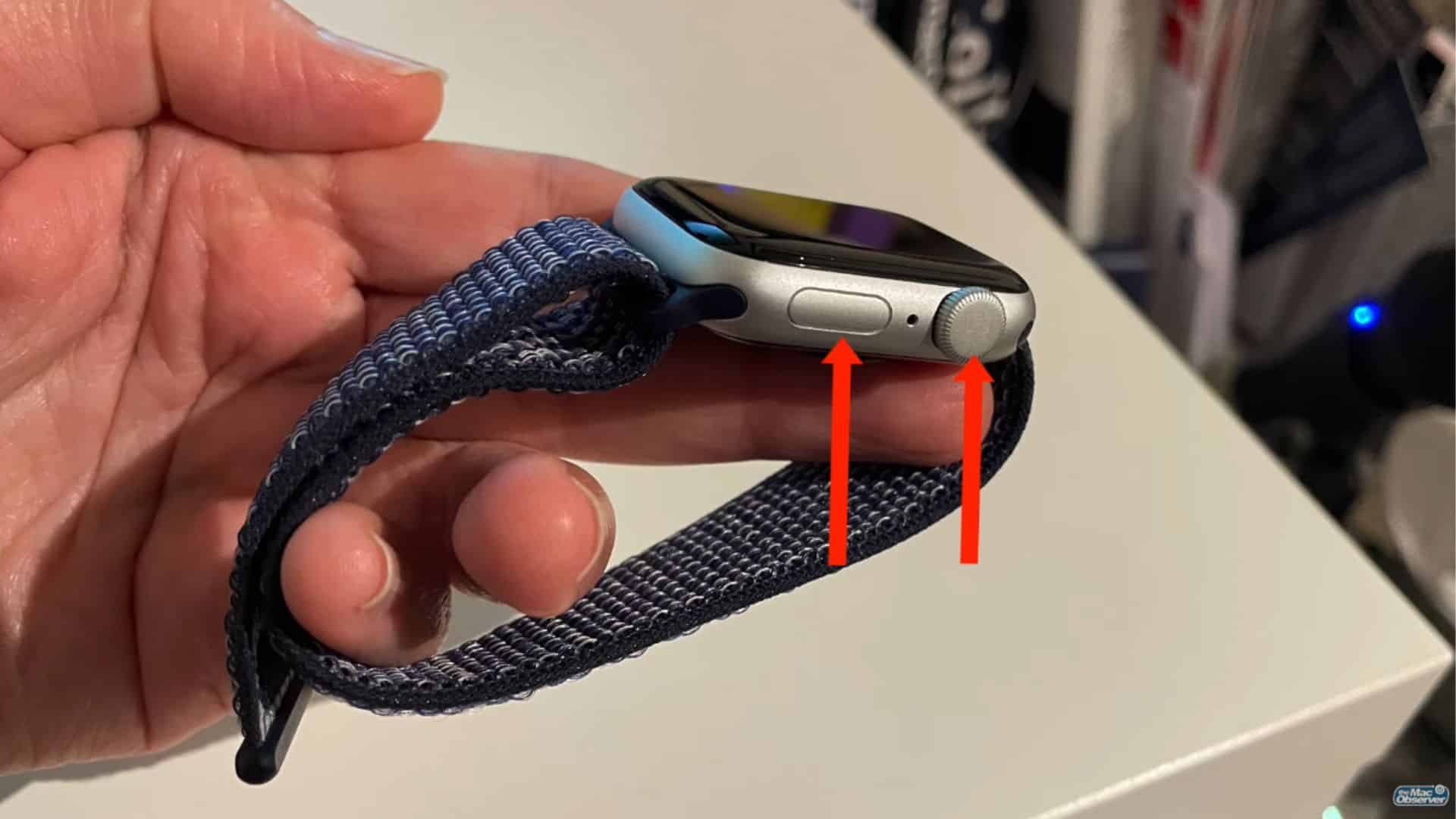
Capturing what’s on your Apple Watch screen is a handy feature for saving fitness achievements, unique watch faces, or important notifications. The process is quick but requires a one-time setup, as the feature is disabled by default. Here’s how to enable and use the screenshot function on all Apple Watch models and watchOS versions.
1. How to Enable the Screenshot Feature
Since screenshots are turned off initially, you must first activate the setting. You can do this directly on the watch or via your paired iPhone.
On your Apple Watch:
-
Press the Digital Crown to go to the Home Screen.
-
Open the Settings app.
-
Tap General, then select Screenshots.
-
Toggle Enable Screenshots on.
Using your paired iPhone:
-
Open the Watch app.
-
Go to the My Watch tab and tap General.
-
Scroll down and toggle on Enable Screenshots.
2. How to Take a Screenshot
Once enabled, taking a screenshot is instantaneous.
-
Navigate to the screen you wish to capture (watch face, app, notification, etc.).
-
Briefly press the Side Button and the Digital Crown simultaneously.
-
The screen will flash white, and you’ll hear a camera shutter sound (if your watch isn’t on silent), confirming the capture.
Note: This button combination works in most apps and interfaces. However, some secure apps (like those for banking or passwords) may block screenshots for privacy reasons.
3. Where to Find Your Screenshots
Screenshots are not stored on the Apple Watch to save space. They are automatically sent to and saved on your paired iPhone.
-
Open the Photos app on your iPhone.
-
Navigate to the Recents album or the dedicated Screenshots album.
Here, you can view, edit, share, or delete the captured images as you would any other photo.
Troubleshooting & Additional Tips
-
Screenshot Not Working? Double-check that the feature is still enabled in Settings > General > Screenshots. Toggle it off and on again if needed, especially after a watchOS update.
-
Avoid Accidental Triggers: Press the buttons quickly and simultaneously. Holding them down may activate other features (like SOS or Power Off).
-
Improve Legibility: For clearer text in your screenshot, consider increasing the text size in Settings > Display & Brightness > Text Size on your watch.
Frequently Asked Questions
Q: Why is the screenshot feature not working on my Apple Watch?
A: First, ensure it is enabled in the Settings. If it is, try restarting both your Apple Watch and iPhone. Some apps also intentionally disable screenshot capabilities.
Q: Do screenshots use storage on my Apple Watch?
A: No. All screenshot images are saved directly to your iPhone’s Photos app and do not consume storage space on the watch itself.
Q: Can I take a screenshot of everything on my watch?
A: Most content can be captured, but certain secure or private interfaces within apps will prevent screenshots for security reasons.
Summary
To take a screenshot on your Apple Watch, first enable screenshots in the General settings. Then, simply press the Digital Crown and the Side Button at the same time. The image will be instantly saved to the Photos app on your connected iPhone, providing a simple way to document and share moments from your wrist.


