How to Stop Your iPhone’s Side Button from Ending Calls
One thing you might not know about your iPhone’s power button is that pressing it automatically ends an active call. This is the default behavior in iOS. But users have long complained about the functionality, and Apple introduced a toggle to disable it within the Accessibility settings in iOS 16. Keep in mind that having the side button hang up ongoing calls isn’t necessarily a bad idea. It’s an easy way to end a phone call without looking at your iPhone’s screen.
The convenience is hard to argue with. But for many, this convenience comes at a cost, and they may end up accidentally hanging up on an important conversation without meaning to. If this has happened to you, the good news is that Apple has made it straightforward to stop the side button from ending calls on iPhones. And the entire process takes less than a minute.
How to Disable the Side Button from Hanging Up Calls
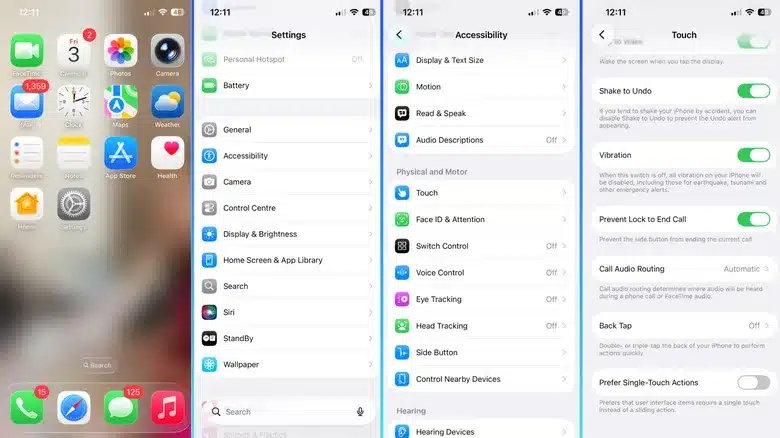
To stop the side button from ending calls on your iPhone:
-
Open Settings.
-
Go to Accessibility.
-
Navigate to the Touch section.
-
Enable the Prevent Lock to End Call toggle.
Important: This option is only available on iPhones running iOS 16 or later.
After making these changes, pressing the side or power button during active calls no longer ends them. Instead, you’ll have a chance to see all the cool things your iPhone’s lock screen can do, while the call continues.
What Changes After Disabling This Feature
| Feature | Before (Default) | After (Prevent Lock to End Call Enabled) |
|---|---|---|
| Press side button during active call | Ends the call immediately | Does nothing (call continues) |
| Press side button twice during incoming call | Declines the call | Does nothing (call remains) |
| Press side button once during incoming call | Silences the call | Silences the call (unchanged) |
Pros and Cons of Disabling the Side Button End Call Feature
Pros:
-
Prevents accidental hang-ups during important conversations.
-
Gives you more control over how you manage calls.
-
Allows you to use the lock screen while on a call without risking disconnection.
Cons:
-
You can no longer end a call quickly without looking at the screen.
-
Pressing the side button twice during an incoming call no longer declines it.
-
May take some time to adjust to the new behavior.
Should You Enable This Setting?
This choice is one of the lesser-known tricks that’ll change how you use your iPhone. If you’re unsure which way to go, consider enabling the Prevent Lock to End Call option for a week and see how it goes. You can always switch it back.
Consider enabling it if you:
-
Frequently hang up accidentally while putting your phone in your pocket or bag.
-
Prefer to use the lock screen during calls without ending them.
-
Find the default behavior frustrating or inconvenient.
Consider leaving it disabled if you:
-
Rely on the side button to quickly end calls.
-
Prefer the default iOS behavior.
-
Don’t have issues with accidental hang-ups.
Frequently Asked Questions
Does this setting affect other button functions?
No. The setting only affects the side button’s behavior during active calls. Other functions, such as locking the screen or using the side button for Apple Pay, remain unchanged.
Can I still end a call without the side button?
Yes. You can always end a call by tapping the red End Call button on the screen.
Does this work with wired or Bluetooth headphones?
Yes. The setting applies to all calls, regardless of whether you’re using headphones, speakers, or the phone’s earpiece.
Will this prevent me from declining calls?
No. You can still decline calls by tapping the red Decline button on the screen or using the side button in combination with other gestures (e.g., double-pressing the side button on Apple Watch).
Can I decline a call without looking at the screen?
Yes. If you prefer using the side button to decline calls, you can leave the setting disabled. Alternatively, you can use Siri or other accessibility features.
Summary
| Step | Action |
|---|---|
| 1 | Open Settings |
| 2 | Tap Accessibility |
| 3 | Select Touch |
| 4 | Toggle Prevent Lock to End Call to ON |
-
Pressing the side button during an active call will no longer end the call.
-
Double-pressing the side button during an incoming call will no longer decline it.
-
Pressing the side button once during an incoming call will still silence the ringtone.
-
The setting is available on iOS 16 and later.
Conclusion
Disabling the side button from ending calls on your iPhone is a simple but impactful change. Whether you frequently hang up accidentally or simply prefer more control over your calls, enabling Prevent Lock to End Call in Accessibility settings takes less than a minute and can save you from embarrassing or frustrating moments. If you’re unsure, try it for a week—you can always switch it back if you prefer the default behavior.