How to Stop the macOS Dock from Bouncing Icons: A Complete Guide
The Bounce That Breaks Concentration
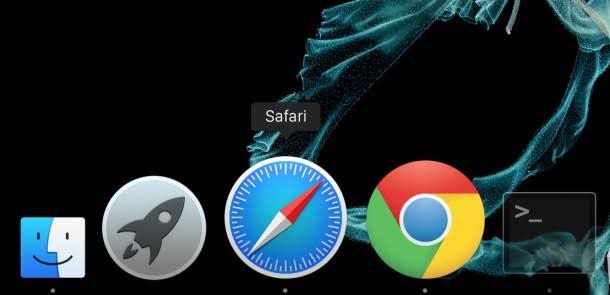
The macOS Dock—this operating system’s version of a taskbar or Start bar—will sometimes bounce icons on it to indicate that something is happening or has happened within an application. This could range from alerting you to an app that has finished loading, a program that has crashed, or that you’ve received a message.
While this feature is designed to be helpful, it can be quite irritating in the midst of work, or even while watching something on your Mac. The constant visual distraction can break your focus and disrupt your workflow.
Fortunately, you can turn off bouncing icons on your device. This guide covers two methods: a simple settings adjustment and a more powerful system-wide Terminal command that completely overrides the animation.
Quick Overview: Two Methods to Stop Dock Bouncing
| Method | What It Does | Difficulty |
|---|---|---|
| System Settings | Disables bouncing while applications are opening | Very Easy |
| Terminal Command | Disables bouncing system-wide for all purposes | Moderate |
Pro Tip: If you want to stop all bouncing animations, use the Terminal method. The System Settings method only affects the “opening applications” animation.
Method 1: Disable Dock Bouncing via System Settings
This method is the quickest and most straightforward. It disables the bouncing animation specifically for applications that are opening.
Step-by-Step Instructions
-
Click the Apple logo in the top-left corner of your screen.
-
Select System Preferences (on older macOS) or System Settings (on recent versions).
-
Navigate to:
-
Dock & Menu Bar (older macOS)
-
Desktop & Dock (macOS Tahoe and later)
-
-
Locate the option labeled “Animate opening applications.”
-
Toggle it OFF.
Result: The bouncing animation will no longer appear when an application is opening.
Apply the Change
After toggling the setting, you may need to restart your Mac or use the Terminal to apply the change immediately:
killall Dock
Pro Tip: You can quickly access Settings by pressing Cmd + Space to open Spotlight, typing “Settings,” and pressing Enter.
Method 2: Disable Dock Bouncing System-Wide (Terminal)
If you want to ensure that bouncing is disabled for all purposes—not just while opening applications—you’ll need to use a Terminal command.
Step-by-Step Instructions
-
Open the Terminal application (Applications > Utilities > Terminal).
-
Type or copy-paste the following command:
defaults write com.apple.dock no-bouncing -bool TRUE;
-
Reset the Dock with the following command (or restart your Mac):
killall Dock;
Result: Bouncing icons will be completely disabled system-wide, regardless of the reason (loading, crashing, message notifications, etc.).
How to Revert the Terminal Change
If you ever want to re-enable the bouncing animation, you can simply reverse the Terminal command.
Step-by-Step Instructions
-
Open Terminal.
-
Type or copy-paste the following command:
defaults write com.apple.dock no-bouncing -bool FALSE;
-
Reset the Dock:
killall Dock;
Result: Bouncing animations will be restored to their default behavior.
Comparison Table: System Settings vs. Terminal
| Aspect | System Settings | Terminal |
|---|---|---|
| What It Disables | Opening applications only | All bouncing system-wide |
| Difficulty | Very Easy | Moderate |
| Permanent | Yes (until re-enabled) | Yes (until reverted) |
| Requires Terminal | No | Yes |
| Best For | Casual users | Power users wanting full control |
Why Does the Dock Bounce?
| Reason | Description |
|---|---|
| App Loading | Indicates an application is launching. |
| Crashed App | Signals that a program has unexpectedly quit. |
| Message Received | Alerts you to a new message in apps like Messages or Slack. |
| File Download | Some apps bounce to indicate a completed download. |
Understanding the Context: The bounce is intended to be a helpful visual cue, but for many users, it becomes a distracting annoyance.
Additional macOS Customization Tips
| Tip | How It Helps |
|---|---|
| Use Menu Bar Apps | Add widgets and utilities to your menu bar for quick access. |
| Customize Dock Position | Place the Dock on the left, right, or bottom of your screen. |
| Hide the Dock | Auto-hide the Dock to maximize screen real estate. |
| Adjust Icon Size | Make Dock icons larger or smaller to suit your preference. |
You’re Not Alone: macOS isn’t as locked down as some people make it out to be. It’s very controlled, and you certainly have to do a bit of legwork to get it where you’d like—but it can happen.
Frequently Asked Questions
How do I stop the Mac Dock from bouncing?
You can disable bouncing via System Settings (Dock & Menu Bar > Animate opening applications) or use a Terminal command (defaults write com.apple.dock no-bouncing -bool TRUE).
What does killall Dock do?
It restarts the Dock process, applying any changes you’ve made to its settings without requiring a full system restart.
Will disabling Dock bouncing affect notifications?
No. You’ll still receive notifications; the icons just won’t bounce when you receive them.
Can I revert the Terminal change?
Yes. Run defaults write com.apple.dock no-bouncing -bool FALSE and then killall Dock.
Is there a way to stop only specific apps from bouncing?
Not natively. The Terminal method disables bouncing system-wide for all applications.
Quick Reference Summary
| Step | Action |
|---|---|
| 1 | Open System Settings > Desktop & Dock (or Dock & Menu Bar). |
| 2 | Toggle off “Animate opening applications.” |
| 3 | For system-wide control, open Terminal and run defaults write com.apple.dock no-bouncing -bool TRUE. |
| 4 | Run killall Dock to apply the change. |
| 5 | To revert, set the value to FALSE and run killall Dock again. |
Final Thoughts: Take Control of Your Dock
The macOS Dock’s bouncing icons are designed to be helpful, but for many users, they’re simply a distraction. Whether you choose the simple System Settings toggle or the more powerful Terminal override, you can take control of your Mac’s visual behavior and enjoy a cleaner, more focused experience.
The bottom line: Customizing your Mac to suit your preferences is part of the macOS experience. With just a few clicks or a simple Terminal command, you can eliminate that annoying bounce and work without interruption.