

How to Recover Your Digital ID If You Lose Your iPhone or Apple Watch
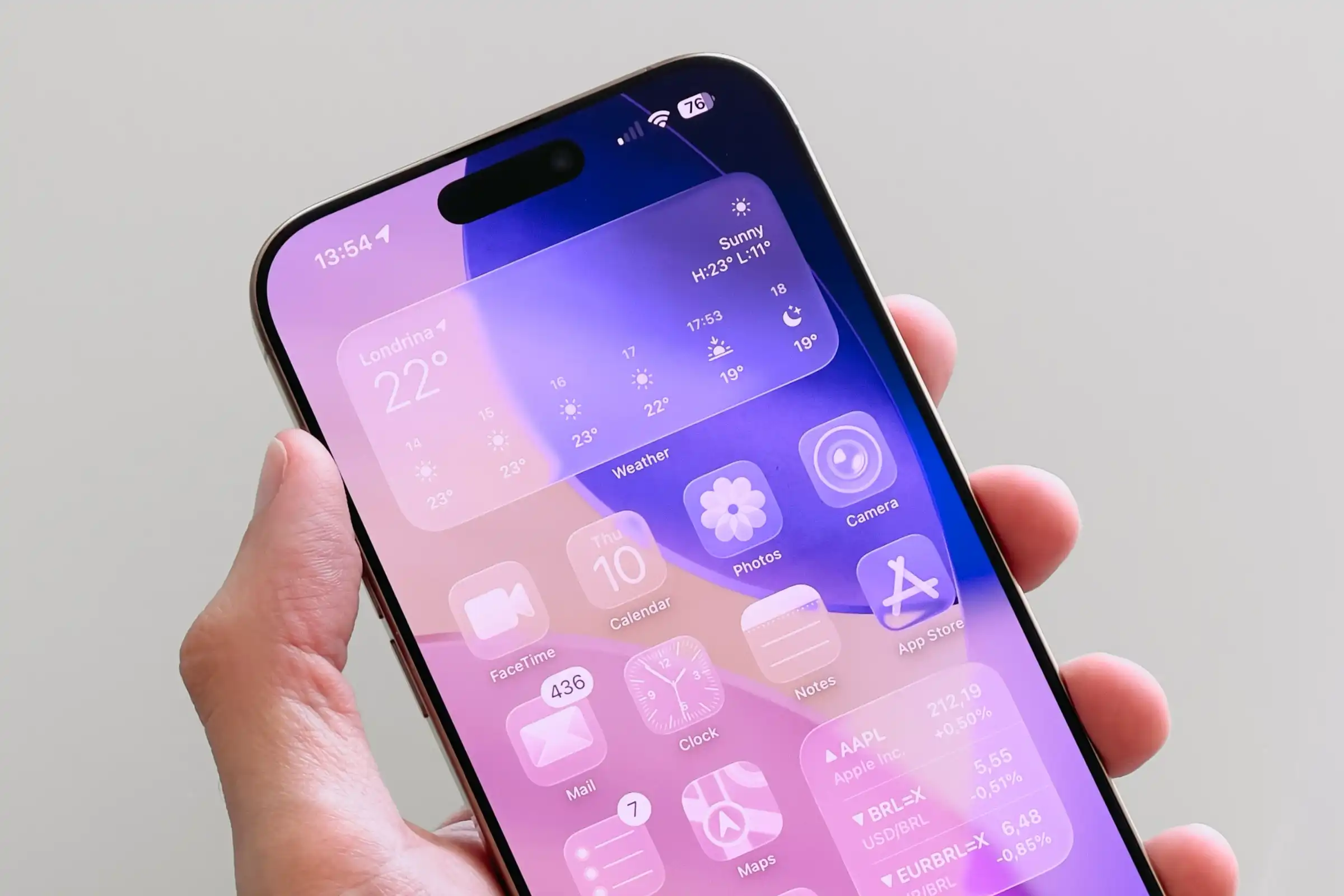
Losing your iPhone or Apple Watch is stressful, and losing access to your Digital ID in Apple Wallet adds another layer of concern. Fortunately, Apple provides clear steps to secure your identity and recover your credentials. Acting quickly and methodically is key to protecting your personal information.
1. Immediately Lock Your Missing Device with Find My
Your first priority is to remotely lock your device to prevent unauthorized access.
-
Use the Find My app on another Apple device or go to iCloud.com/find on a computer.
-
Select your lost device and enable Lost Mode. This immediately locks the screen and suspends Apple Pay.
-
You can display a custom message with a phone number where you can be reached.
2. Secure Your Apple ID Account
Since your Apple ID is the key to your digital life, you must secure it immediately.
-
Change your Apple ID password from another trusted device or via iforgot.apple.com.
-
Review your list of Trusted Devices in your Apple ID settings and remove the lost one.
-
Ensure two-factor authentication is active to prevent unauthorized sign-ins.
3. Contact the Issuer to Replace Your Digital ID
Apple Wallet stores your ID but doesn’t issue it. You must contact the original provider to revoke the lost credential and get a new one.
-
For a driver’s license or state ID: Contact your state’s DMV to report it compromised and request a replacement.
-
For a university ID, employee badge, etc.: Reach out to the relevant issuing institution (your university’s card office, your employer’s HR department, etc.).
-
Once you have a new iPhone, you can re-add the re-issued Digital ID through the Wallet app.
4. Recover Your Apple ID If You’ve Lost All Devices
If you lose both your iPhone and Apple Watch, you can still regain access through Apple’s Account Recovery process.
-
Visit iforgot.apple.com.
-
Follow the steps for Account Recovery, which may involve using a recovery key, contacting your account recovery contacts, or verifying your identity with Apple.
-
Once you regain access, you can set up a new device and re-add your Digital ID.
5. Stay Vigilant Against Phishing Attempts
Scammers often target people who have recently lost a device.
-
Be wary of any messages or emails claiming to be from Apple asking you to “verify” your account or click on links.
-
Always go directly to Apple’s official websites (like icloud.com or iforgot.apple.com) yourself instead of clicking links in messages.
-
Change passwords for other important accounts linked to your Apple ID, such as email and banking apps.
Final Recommendation
Recovering from a lost device is about a swift, secure sequence: Lock → Secure → Replace. By using Find My to lock your device immediately, securing your Apple ID, and working with the official issuer to replace your Digital ID, you can effectively protect your identity. Apple’s ecosystem is designed with these security measures to ensure that a lost device doesn’t have to lead to a compromised identity.


