How to Get the Best Audio from Your Tesla: Media Settings, EQ, and More
Your Tesla’s Audio System Deserves Attention
Driving an electric vehicle can save you money on gas, but even in a Tesla, your audio output still matters. You may have chosen one of the company’s EVs for its fast charging and long range, but several Tesla models include audio setups worth taking advantage of—for example, certain premium Model 3s can deliver up to 560W of power.
Many Tesla audio systems can deliver serious sound, and here’s how to get the most out of one.
What You’ll Learn: How to adjust Media Settings, use EQ and Immersive Sound, play lossless audio via USB, stream high-quality audio through Tidal, and fix common audio issues.
Getting Started with Tesla Media Settings
One of the first ways to adjust the audio in your Tesla is to start with the Media Settings.
How to Access Media Settings
| Model | Navigation Path |
|---|---|
| Model Y | Controls > Audio, or tap the settings icon above volume controls |
| Other Models | Similar path—check your vehicle’s manual |
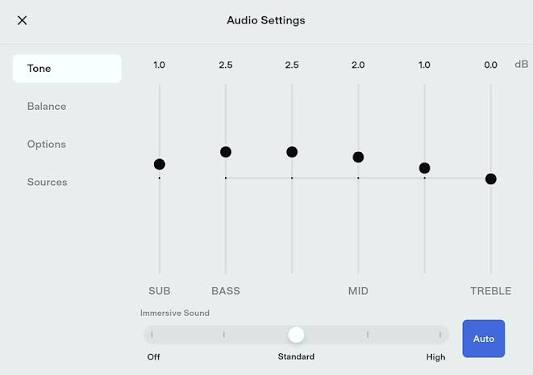
Within this menu, Tesla users can tweak several features, with the main one being Tone—essentially your equalizer (EQ).
Adjusting the EQ (Tone Settings)
The Tone menu is where you’ll find Tesla’s equalizer. Users can drag the sliders to adjust several frequencies, including:
| Frequency Band | What It Affects |
|---|---|
| Bass | Low-end punch and rumble |
| Bass/Mid | Warmth and body |
| Mid | Vocals and instruments |
| Treble | Clarity and detail |
Recommended EQ Starting Points
| Adjustment | Recommendation |
|---|---|
| Bass | +2 |
| Treble | +1 or +2 |
| Cybertruck Bass | Go easier on the Bass |
Pro Tip: Try boosting Bass by +2 and Treble by +1 or +2 for more body and detail.
Community-Recommended EQ Settings
One user on Reddit recommends:
| Frequency Band | Boost Level |
|---|---|
| 5.5 | Several levels |
| 7.5 | Several levels |
| 6.0 | A couple of levels |
| 4.0 | Slight tweak |
| 6.0 | Slight tweak |
Important: Modifying frequency ranges is subjective. Experiment to see what works best for your ears.
Using Immersive Sound
If you have the premium audio package, you may also have an Immersive Sound option.
| Feature | What It Does |
|---|---|
| Adjustable Slider | Lets you set the intensity of the surround effect |
| Auto Option | Adjusts based on the media being played |
Pro Tip: Try experimenting with different levels, as different genres may require different settings.
Balance Controls: Focusing the Soundstage
You can get further mileage from your Media Settings by tweaking the balance controls, which can help focus the sound in one location.
| Control | Effect |
|---|---|
| Balance (Left/Right) | Shifts sound between left and right speakers |
| Fade (Front/Rear) | Shifts sound between front and rear speakers |
Best For: Ensuring all passengers get a good listening experience, or focusing sound toward the driver.
Playing Lossless Audio via USB
A cool thing about Teslas is that they support lossless audio like FLAC and WAV from a USB drive.
How to Set Up USB Audio
| Step | Action |
|---|---|
| 1 | Format your USB drive to FAT32 |
| 2 | Keep your music in a folder in the root directory (top-level folder) |
| 3 | Plug the USB drive into your Tesla |
| 4 | Access your music through the Media player |
Pro Tip: You can also use the USB key that likely came with your vehicle. A USB hub can be one accessory that makes your Tesla feel brand new.
Why USB Audio Sounds Better
| Factor | Benefit |
|---|---|
| No Bluetooth Compression | Avoids further audio compression |
| Lossless Quality | CD-quality audio (FLAC, WAV) |
| No Streaming Lag | Local playback is instant |
The Bottom Line: If you’re truly concerned about audio, going the USB route may provide better sound than streaming options.
Streaming High-Quality Audio with Tidal
Those with a subscription to the Tidal streaming service can access high-quality audio through an Individual plan.
| Service | Audio Quality | Notes |
|---|---|---|
| Tidal | Lossless / Hi-Res | Requires subscription |
| Spotify | Up to 320 kbps | Quality settings adjustable |
| Apple Music | Lossless / Hi-Res | Available in some regions |
| YouTube Music | Up to 256 kbps | Not lossless |
What Is Lossless? Lossless is essentially CD-quality audio—no compression, full fidelity. Whether you can tell the difference between Hi-Res and lossless audio is another question entirely.
Fixing Tesla Audio Issues
If your Tesla is experiencing audio issues, try these solutions:
Scroll Wheel Reset
| Step | Action |
|---|---|
| 1 | Make sure the vehicle is in Park |
| 2 | Hold down both scroll buttons on the steering wheel |
| 3 | Let go when the screen turns black or restarts |
When to Use: This is a quick fix for static, clipping, or touchscreen glitches.
Software Updates
| Solution | Details |
|---|---|
| Automatic Updates | Your vehicle should download them automatically |
| Manual Check | Check your manual for more info |
| Benefits | May fix audio bugs and improve performance |
Pro Tip: If audio issues persist after a reset and software update, contact Tesla support.
Comparison Table: Tesla Audio Options
| Method | Quality | Convenience | Requirements |
|---|---|---|---|
| Bluetooth Streaming | Compressed | High | Phone paired |
| USB (FLAC/WAV) | Lossless | Moderate | FAT32 USB drive |
| Tidal Streaming | Lossless/Hi-Res | High | Tidal subscription |
| Spotify Streaming | Up to 320 kbps | High | Spotify subscription |
| Apple Music | Lossless (select regions) | High | Apple Music subscription |
Frequently Asked Questions
Q: How do I access Media Settings in my Tesla?
A: Navigate to Controls > Audio, or tap the settings icon above your volume controls.
Q: What EQ settings are best for a Tesla?
A: Start with Bass +2 and Treble +1 or +2. For Cybertrucks, go easier on the Bass. Experiment to find what sounds best to you.
Q: What is Immersive Sound in a Tesla?
A: Immersive Sound adjusts the soundstage for a surround sound experience. It’s available with the premium audio package.
Q: Can I play lossless audio in my Tesla?
A: Yes. Teslas support FLAC and WAV files from a FAT32-formatted USB drive.
Q: Does Tidal work in Tesla?
A: Yes. Tidal is available in Teslas, and an Individual plan gives you access to high-quality audio.
Q: How do I fix static or clipping in my Tesla’s audio?
A: Try a Scroll Wheel Reset: put the car in Park, hold both scroll buttons until the screen restarts.
Q: Is USB audio better than Bluetooth?
A: Generally, yes. USB avoids Bluetooth compression, so lossless files play at full quality.
Quick Reference Summary
| Task | How to Do It |
|---|---|
| Access Media Settings | Controls > Audio |
| Adjust EQ | Tone menu > Drag sliders |
| Enable Immersive Sound | Premium audio package > Adjust slider |
| Play Lossless via USB | FAT32 drive > Music in root folder |
| Stream High-Quality | Tidal Individual plan |
| Fix Audio Issues | Scroll Wheel Reset (Park + hold both scroll buttons) |
Final Thoughts
Your Tesla’s audio system is capable of delivering serious sound—but only if you take the time to configure it properly. From adjusting the EQ and Immersive Sound to playing lossless audio via USB or streaming through Tidal, there are plenty of ways to elevate your listening experience.
The bottom line: Whether you’re commuting, road-tripping, or just sitting in your driveway, taking a few minutes to dial in your Tesla’s audio settings is worth the effort. And if you run into issues, a quick Scroll Wheel Reset often does the trick.