

How to Fix the Black Wallpaper Glitch in macOS 26 Tahoe
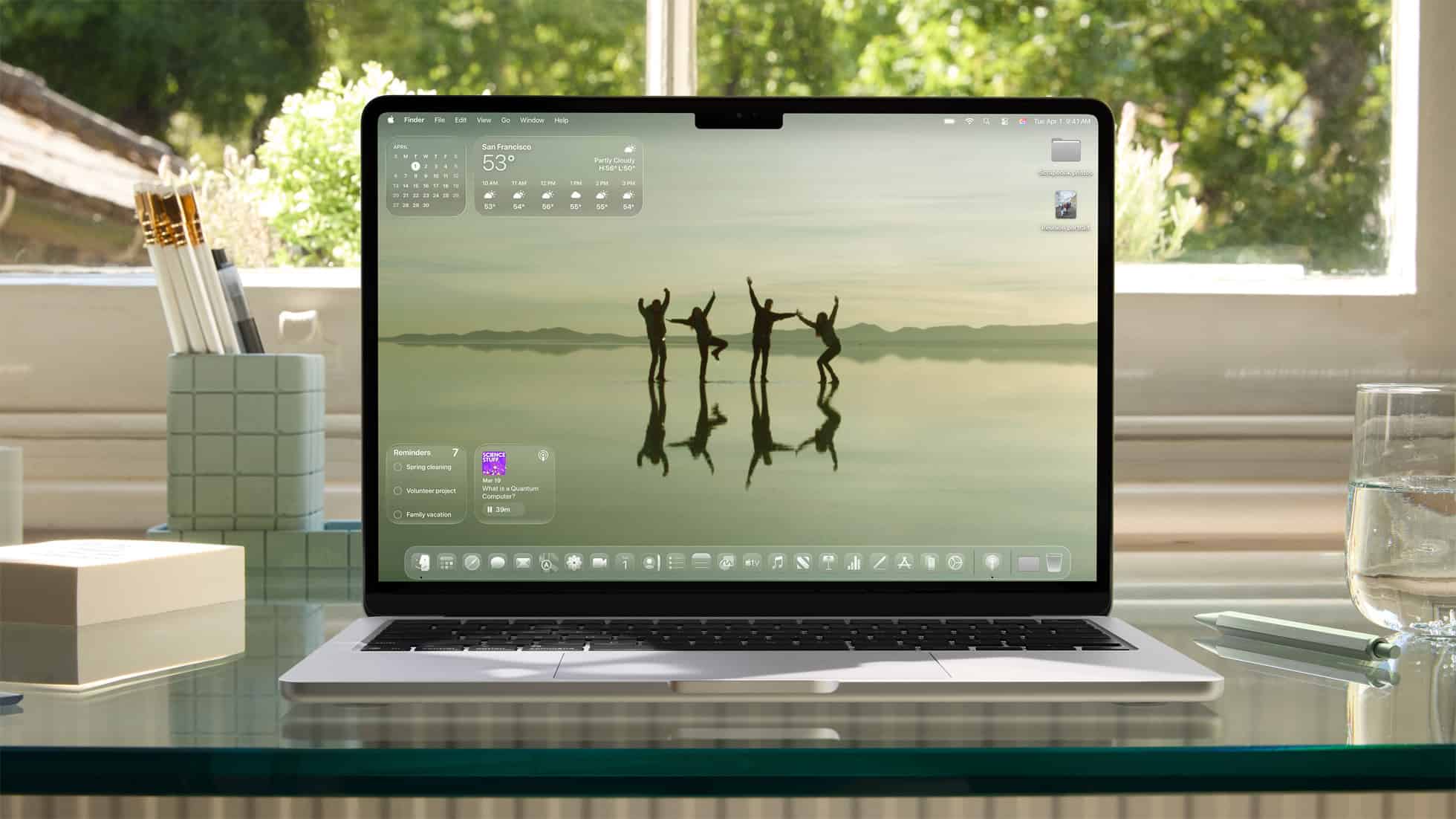
A common visual bug in macOS 26 Tahoe causes the screen to flash to a black wallpaper during app transitions, especially when using dynamic or light-mode wallpapers. This glitch typically occurs after a system update, a sleep cycle, or due to a Mission Control misconfiguration.
Fortunately, this issue is usually software-related and can be resolved with a few straightforward troubleshooting steps.
Step-by-Step Fixes
Try these solutions in order, from the simplest to the more advanced.
1. Restart Your Mac
The quickest and most effective first step is a simple restart. This clears temporary system caches and resets the wallpaper rendering engine.
-
Click the Apple menu in the top-left corner.
-
Select Restart.
2. Reset Your Desktops in Mission Control
This forces macOS to rebuild your desktop spaces and their associated wallpapers.
-
Open Mission Control (swipe up with three fingers on the trackpad or press Control + Up Arrow).
-
Hover your cursor over the desktop space you are using and click the small “X” that appears to close it.
-
Click the “+” icon in the top-right corner to create a new desktop.
-
Set your preferred wallpaper on the new desktop.
3. Switch Your Wallpaper Mode
Dynamic wallpapers set to “Automatic” can sometimes cause this glitch.
-
Go to System Settings > Wallpaper.
-
Select your current wallpaper.
-
Manually toggle the mode from Automatic to Dark or Light instead.
4. Test in Safe Mode
Safe Mode helps determine if a third-party app or login item is causing the conflict.
-
For Apple Silicon Macs: Shut down your Mac. Hold down the power button until “Loading startup options” appears. Select your startup disk, hold the Shift key, and click “Continue in Safe Mode.”
-
For Intel Macs: Restart your Mac and immediately hold the Shift key until you see the login window.
-
If the problem is resolved in Safe Mode, a third-party application is likely the cause.
5. Adjust Energy Saver Settings
Some power-saving features can interfere with graphics performance.
-
Go to System Settings > Battery > Energy Saver.
-
Disable the option for “Prevent computer from sleeping when the display is off.”
-
Restart your Mac.
FAQ
Q: Why does this only happen during app transitions?
A: It’s typically a rendering glitch where the GPU fails to load the wallpaper correctly during the animation, often tied to Mission Control or dynamic wallpaper settings.
Q: Does this happen with all wallpapers?
A: No. The issue is most common with built-in dynamic wallpapers, especially when set to “Automatic.”
Q: Will a future macOS update fix this?
A: Very likely. Apple often addresses such visual bugs in subsequent minor updates, so ensure your system is up to date.
Final Recommendation
Start with a simple restart and the Mission Control reset, as these resolve the issue for most users. If the problem persists, systematically work through the other steps to identify the specific cause. This glitch is an annoyance but is rarely a sign of a serious hardware problem.


