How to Fix Invisible Cursor in Mewgenics
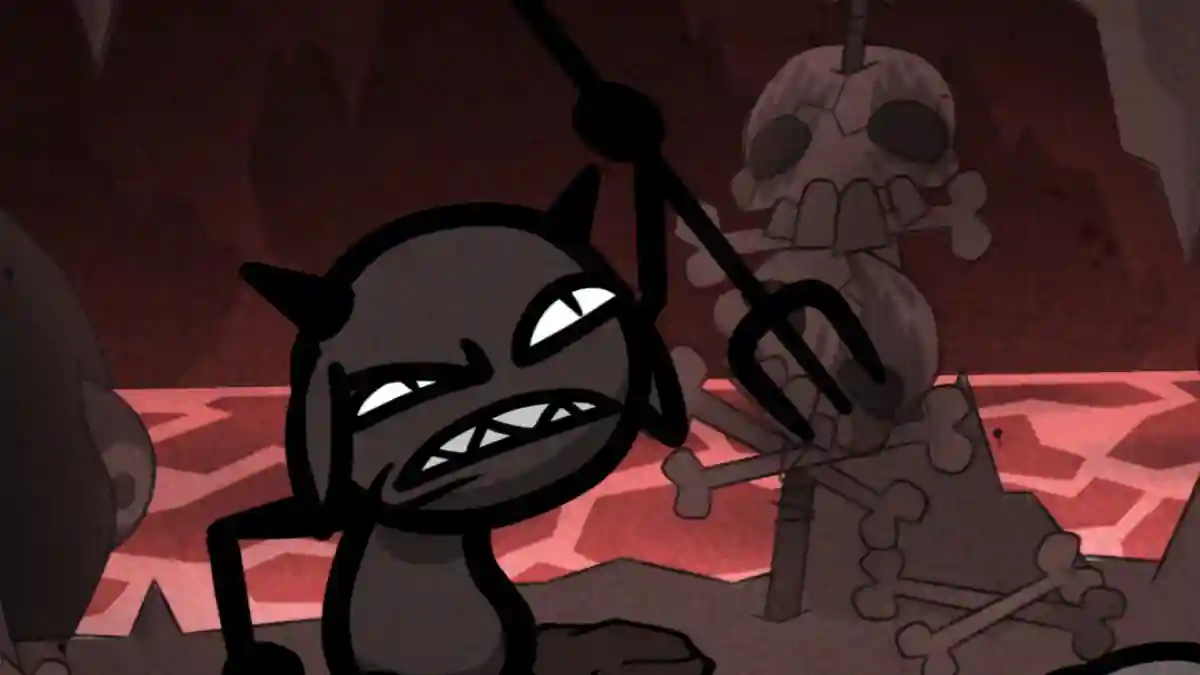
Mewgenics is a unique legacy roguelite where you breed mutant cats and lead them through turn-based adventures. Some players encounter an issue where the mouse cursor becomes invisible or missing when launching the game, making navigation impossible. This is typically caused by a conflict between the game’s fullscreen mode and its cursor rendering.
Below is the official, working fix to restore your cursor.
🛠️ Step-by-Step Fix: Toggle Fullscreen & Cursor Mode
This simple three-step process forces the game to reinitialize its cursor rendering. Follow the steps in order.
| Step | Action | Location | Details |
|---|---|---|---|
| 1 | Switch to Windowed Mode | Settings > Video Settings | Uncheck “Fullscreen”. The game will shrink to a window, making the cursor visible. |
| 2 | Change Cursor Mode | Settings > Input | Find “Cursor Mode” and switch it to “In Game”. This ensures the game uses the correct cursor type. |
| 3 | Return to Fullscreen | Settings > Video Settings | Re-check “Fullscreen” to go back to your preferred display mode. The cursor should now be visible. |
📝 Detailed Instructions
-
Launch Mewgenics and wait for it to load. If you cannot see your cursor, use keyboard navigation (arrow keys and Enter) to access the menus.
-
Navigate to Settings (usually the gear icon), then select Video Settings.
-
Find the “Fullscreen” checkbox and uncheck it. The game will immediately switch to windowed mode, and your cursor should reappear.
-
Now go to Input Settings (often a tab within Settings). Locate the dropdown for “Cursor Mode” .
-
Change it from its current setting (likely “Native” or “Hardware”) to “In Game” . This tells the game to render its own software cursor instead of relying on the system cursor.
-
Return to Video Settings and re-check “Fullscreen” . The game will expand back to fullscreen, now with a visible cursor.
💡 Why This Works
The invisible cursor issue often occurs because the game’s hardware cursor conflicts with fullscreen display modes on certain systems (especially Windows with high DPI scaling or multiple monitors). Switching to windowed mode breaks that conflict, and toggling Cursor Mode to “In Game” forces the game to use its own stable, software-rendered cursor that works reliably in fullscreen.
✅ Additional Tips
-
Save Your Settings: After applying the fix, exit the settings menu to ensure the changes are saved.
-
Update Graphics Drivers: If the problem persists, ensure your graphics card drivers are up to date, as outdated drivers can cause rendering glitches.
-
Verify Game Files: If the issue returns, try verifying the integrity of game files through your game launcher (Steam/Epic) to rule out corrupted files.
I hope this guide helps you get back to breeding your army of mutant cats without the frustration of a missing cursor! If the problem continues, let me know what platform you’re playing on (Steam, Epic, etc.) for more targeted troubleshooting.