How to Fix High-Pitch Noise in AirPods Pro 3
If your AirPods Pro 3 are emitting a whining, squealing, or feedback noise, particularly when Noise Cancellation or Transparency mode is active, follow this systematic troubleshooting guide to resolve the issue.
Immediate Solutions to Try First
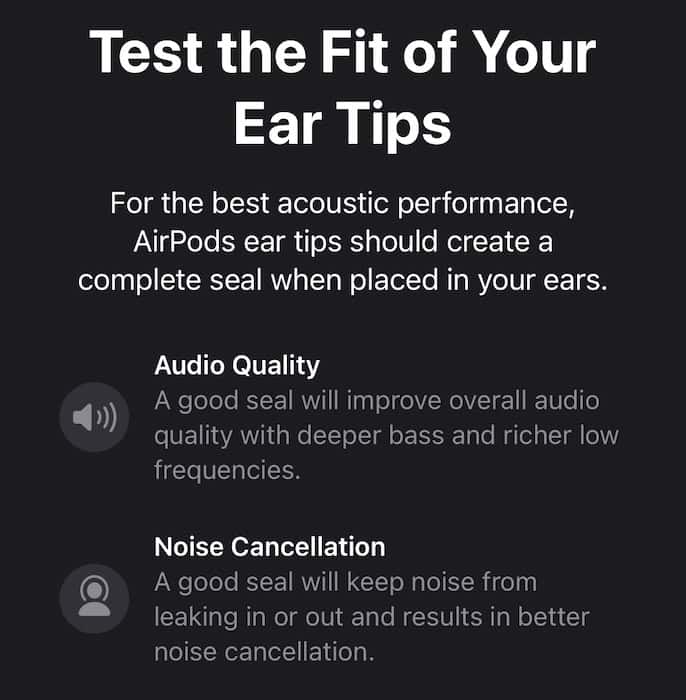
1. Check the Physical Fit and Seal
A poor ear tip seal is one of the most common causes of feedback and whistling sounds.
-
Go to Settings > Bluetooth on your iPhone
-
Tap the “i” next to your AirPods Pro 3
-
Run the Ear Tip Fit Test to ensure a proper seal
-
Try all included ear tip sizes for the best fit
-
Clean the ear tips and microphone grilles with a dry, soft-bristled brush
2. Toggle Noise Control Modes
Quickly identify if the issue is mode-specific:
-
Open Control Center on your iPhone
-
Press and hold the volume slider
-
Switch between Noise Cancellation, Transparency, and Off
-
If the noise disappears in “Off” mode, the issue is with the active noise control system
Software and Reset Procedures
3. Update Firmware and iOS
-
Place AirPods in their case, connect to power, and place near your iPhone
-
Firmware updates install automatically overnight
-
Check current version in Settings > Bluetooth > [Your AirPods]
-
Update your iPhone via Settings > General > Software Update
4. Reset Your AirPods Pro 3
This clears any corrupted settings or connection glitches:
-
Place both AirPods in the case and close the lid for 30 seconds
-
On iPhone: Settings > Bluetooth > [Your AirPods] > Forget This Device
-
With case lid open, press and hold the setup button until LED flashes amber then white
-
Re-pair to your iPhone and test
Advanced Troubleshooting
5. Disable Adaptive Features
-
Go to Settings > Bluetooth > [Your AirPods]
-
Turn off Adaptive Audio, Conversation Awareness, and Personalized Volume
-
Test if the high-pitch noise persists with these features disabled
6. Check for Microphone Blockages
-
Inspect the external and internal microphone grilles
-
Gently clean with a dry cotton swab
-
Ensure no debris, lint, or moisture is obstructing the ports
-
Blocked microphones can cause feedback loops in noise control modes
When to Seek Service
If the problem persists after all troubleshooting:
-
Contact Apple Support or visit an Apple Store
-
Describe when the noise occurs (which modes, environments)
-
Note if it affects one or both AirPods
-
Mention all troubleshooting steps you’ve already tried
Potential Hardware Issues:
-
Faulty internal microphones
-
Damaged noise-cancellation components
-
Manufacturing defects (check for service programs)
Prevention Tips
Regular Maintenance:
-
Clean microphone grilles weekly
-
Store in case when not in use
-
Avoid exposure to moisture and extreme temperatures
-
Use correct ear tip size for your ears
Optimal Usage:
-
Ensure proper fit before activating noise control modes
-
Update firmware regularly
-
Avoid covering microphone grilles during use
-
Be aware that pressure changes (flights) can affect performance
FAQ
Why does this happen mainly with Noise Cancellation?
The external microphones create a feedback loop when they pick up internal sounds, often due to poor seal or blockages.
Can earwax cause this issue?
Yes, earwax blocking the internal microphone or vent can definitely cause whistling and feedback noises.
Is this covered under warranty?
If the issue is a manufacturing defect, it should be covered by Apple’s one-year limited warranty or AppleCare+.
Will resetting delete my settings?
Yes, you’ll need to re-pair and reconfigure any custom settings, but it often resolves software-related audio glitches.
Conclusion
Most high-pitch noise issues with AirPods Pro 3 can be resolved through proper fit maintenance, software updates, and simple resets. Work through these solutions in order, starting with the physical fit and basic mode toggling before moving to more advanced troubleshooting. If the problem continues despite all efforts, professional service is your best option to address potential hardware defects.