How to Change Your Email Password on iPhone: A Step-by-Step Guide
Keep Your iPhone Mail App in Sync
You just updated your email password for security reasons—or perhaps you forgot it and had to reset it. Now, your iPhone Mail app refuses to fetch new messages, displaying an annoying “Password Incorrect” error.
Don’t worry. Updating your email credentials on an iPhone is a straightforward process that takes only a few taps—provided you know exactly where to look. This comprehensive guide walks you through changing your email password on an iPhone for iCloud, Gmail, Outlook, Yahoo, and other providers, ensuring your Mail app stays perfectly synced with your account.
Before You Start: Essential Preparation
To ensure a smooth and frustration-free password update, complete these preliminary steps first:
-
✅ Know Your New Password: Have your updated or newly created password ready before you begin.
-
✅ Check Internet Connectivity: Ensure your iPhone is connected to Wi-Fi or cellular data—you will need an active connection.
-
✅ Two-Factor Authentication (2FA): If your email provider uses 2FA, keep your trusted device or backup codes accessible.
-
✅ Update iOS: For optimal compatibility with the Mail app and provider login portals, install the latest version of iOS available for your device.
How to Change Your Email Password on iPhone
The process varies slightly depending on your email provider and the version of iOS you are running. Follow the steps below based on your specific scenario.
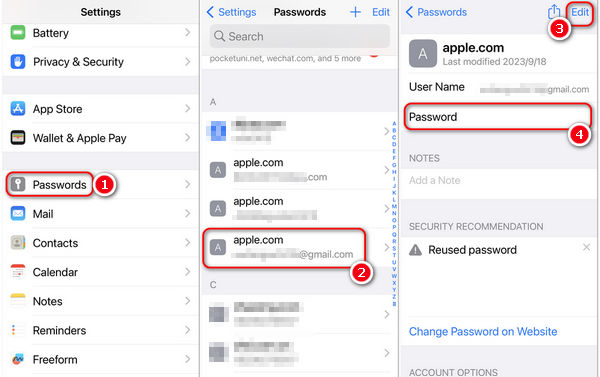
Step 1: Access Your Mail Accounts
-
Open the Settings app from your iPhone’s Home Screen.
-
Depending on your iOS version:
-
iOS 15 and later: Scroll down and tap Mail > Accounts.
-
iOS 14 and earlier: Scroll down and tap Passwords & Accounts.
-
Step 2: Select the Email Account
-
Tap on the email account you wish to update—whether it is iCloud, Gmail, Outlook, Yahoo, or any other provider listed.
-
For iCloud accounts: You will be redirected to your Apple ID settings, as iCloud Mail is tied directly to your Apple ID password.
-
For Gmail / Outlook / Yahoo (and similar third-party providers): Tap Account (or sometimes Re-enter Password) and enter your new password.
Step 3: Complete the Provider Authentication
Some providers, especially those using OAuth 2.0 (like Gmail and Outlook), will automatically open a Safari login screen instead of a simple password field.
-
Enter your new email password on the provider’s secure login page.
-
If you use two-factor authentication or app-specific passwords, follow the on-screen prompts to generate or enter the required code.
-
Tap Sign In or Save to confirm.
Step 4: Test Your Mail App
Return to the Mail app and attempt to send or receive a new message.
-
✅ If emails flow through normally, your password has been successfully updated.
-
❌ If you still see a password error, proceed to the troubleshooting section below.
Provider-Specific Password Update Comparison
| Provider | Where to Update | Special Instructions |
|---|---|---|
| iCloud | Settings > [Your Name] > Password & Security | Changing your Apple ID password automatically updates iCloud Mail. |
| Gmail | Settings > Mail > Accounts > Gmail > Account | May open Google login in Safari. Requires app-specific password if 2FA is enabled. |
| Outlook/Hotmail | Settings > Mail > Accounts > Outlook > Account | Microsoft login portal may appear. Use your Microsoft account password. |
| Yahoo | Settings > Mail > Accounts > Yahoo > Account | Yahoo’s login screen will verify your new credentials. |
| Other Providers (IMAP/POP) | Settings > Mail > Accounts > [Provider] > Account | Enter the new password directly in the password field. No portal redirect. |
Pro Tips for a Smooth Password Update
-
Can’t Find the Password Field? If the password option is missing or grayed out, simply delete the email account and re-add it with your new credentials. This forces a fresh authentication session.
-
Gmail Users with 2FA: If you use two-factor authentication, you may need to generate an app-specific password from your Google Account settings. Use that instead of your regular Gmail password.
-
Use a Password Manager: Keep your email passwords securely stored and easily accessible by using a dedicated password manager (like iCloud Keychain, 1Password, or LastPass).
-
Work or School Accounts: For enterprise or institutional email accounts, check with your IT department about app-specific credentials or single sign-on (SSO) requirements.
Troubleshooting: What If Mail Still Won’t Accept the New Password?
If you have entered your new password correctly but the Mail app continues to display errors, try these advanced fixes:
| Issue | Solution |
|---|---|
| “Incorrect Password” persists | Delete the account entirely (Settings > Mail > Accounts > [Account] > Delete Account). Then re-add it using Add Account at the bottom of the Accounts list. |
| Login screen loops or fails | Check your internet connection. Switch from Wi-Fi to cellular (or vice versa) and try again. |
| App-specific password needed | Generate a new app-specific password from your provider’s security settings (Gmail, Outlook, Yahoo all support this). |
| Two-factor authentication code missing | Ensure you have access to your trusted phone number or authenticator app. Generate a new code if necessary. |
| iOS is outdated | Go to Settings > General > Software Update and install any pending updates to fix Mail app bugs. |
Frequently Asked Questions
Why can’t I change my email password directly in iPhone Mail?
Most major providers (Google, Microsoft, Apple, Yahoo) require authentication through their own secure portals to maintain security standards. You cannot bypass this by simply editing a field in iOS Settings.
How do I reset a forgotten email password?
Visit your email provider’s official website (e.g., appleid.apple.com, accounts.google.com, outlook.com, or login.yahoo.com). Use the “Forgot Password” or “Reset Password” option. Once reset, return to your iPhone and update the credentials using the steps above.
Do I need to delete and re-add my email account?
Not usually. However, if the Mail app repeatedly rejects your new password despite correct entry, deleting and re-adding the account is the most reliable fix.
Will changing my Apple ID password affect iCloud Mail?
Yes. Since iCloud Mail is directly tied to your Apple ID, changing your Apple ID password automatically updates the credentials for iCloud Mail and all other iCloud services (Photos, Drive, Notes, etc.).
Can I update multiple email accounts at once?
No. Each email account must be updated individually. Navigate to Settings > Mail > Accounts and repeat the process for each provider.
Quick Reference Summary
| Step | Action |
|---|---|
| 1 | Open Settings |
| 2 | Tap Mail > Accounts (or Passwords & Accounts) |
| 3 | Select the email account you wish to update |
| 4 | Tap Account (or Re-enter Password) and enter the new password |
| 5 | Complete any provider-specific authentication (Safari login, 2FA, etc.) |
| 6 | Save changes and test the Mail app by sending/receiving a message |
Final Thoughts: Secure and Sync Your Email in Minutes
Changing your email password on an iPhone is a quick and essential maintenance task that secures your account and restores proper Mail app functionality. Whether you use iCloud, Gmail, Outlook, Yahoo, or a custom IMAP provider, the process typically takes less than a minute once you know where to look.
If the Mail app stubbornly refuses your new password, don’t hesitate to delete and re-add the account—it is a foolproof method that resolves most authentication issues. Keep your iOS updated, use a password manager, and enjoy a seamless email experience on your iPhone.