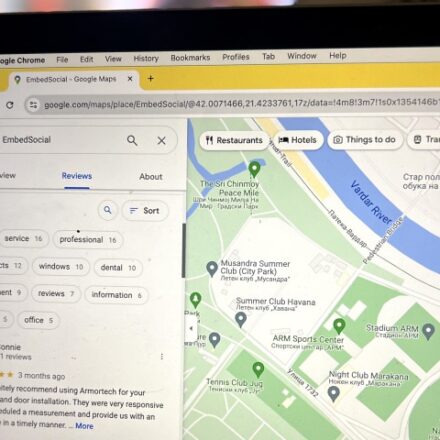
How to Automatically Respond to Google Business Profile Reviews

Google Business Profile reviews are often the first thing potential customers see when they search for your business. A thoughtful response can reinforce your brand and differentiate you from competitors—especially since many businesses never respond at all. But keeping up with every new review, as your business grows, can quickly become another easily ignored task on a crowded to-do list.
With Zapier, you can automatically generate responses to new reviews using AI, enabling faster and more consistent replies. Instead of manually checking your profile daily, this simple workflow writes professional replies for you. This guide shows you how to set up automated responses and stay on top of reviews without adding more busywork.
Quick Reference: Automated Review Response Workflow
| Step | Action | App | Purpose |
|---|---|---|---|
| 1 | Trigger: New Review | Google Business Profile | Detects when a new review is posted |
| 2 | Process: Generate Response | ChatGPT (OpenAI) | Creates AI-powered reply based on review content |
| 3 | Action: Post Reply | Google Business Profile | Automatically publishes the generated response |
Before You Begin
You’ll need two things before setting up your Zap:
-
OpenAI Account: Go to platform.openai.com to sign up
-
API Credits: Fund your account by adding to your Credit Balance (Go to Add to Credit Balance)
Step-by-Step Setup Guide
Step 1: Set Up Your Google Business Profile Trigger
First, create the trigger that starts your automated workflow.
-
Start a new Zap or use the template: Automatically reply to Google Business Profile reviews with ChatGPT
-
Select Google Business Profile as your trigger app
-
Choose New Review as your trigger event
-
Connect your account (if not already connected)
-
Select the business location you want to monitor
-
Note: Create duplicate Zaps for multiple locations
-
-
Test the trigger—select a recent review to use for setup
Step 2: Generate a Response with ChatGPT
Now, configure the AI to write your responses.
-
Get your OpenAI API key:
-
Log into platform.openai.com
-
Expand the left sidebar and click API Keys
-
Click + Create new secret key
-
Copy the key and store it safely
-
-
Add an action step (the template pre-fills this)
-
Select ChatGPT as your action app
-
Choose Conversation as your action event
Pro Tip: Instead of ChatGPT, you can use AI by Zapier—Zapier’s built-in AI tool that lets you choose from multiple models and optimize prompts automatically.
-
-
Connect your OpenAI account and paste your API key
-
Craft your prompt—this is the most critical step. Your prompt needs enough detail about your business and desired tone so ChatGPT responds authentically.
Example prompt:
You will receive a Google Business Profile review. Write a response from me, [Your Name], the owner of [Your Business Name]. I work as an individual (so don't use "we"). Keep the response brief and professional, thanking the reviewer for their feedback. Do not include a signature at the end.

Reviewer: [Reviewer Name]
Review: [Comment]
Rating: [Star Rating] out of 5
-
Map variables from your Google Business Profile trigger:
-
Insert Reviewer Name, Comment, and Star Rating from the data dropdown
-
-
Select gpt-4o in the Model field (leave other fields as default)
-
Test the step—review the generated response and refine your prompt as needed
Step 3: Send Responses Back to Google Business Profile
-
Add another action step
-
Select Google Business Profile as your action app
-
Choose Create Reply as your event
-
-
Customize the action:
-
Review Name: Select Name from the data dropdown (identifies which review you’re responding to)
-
Your Reply: Select Reply from the data dropdown (the ChatGPT-generated response)
-
-
Test the step—this will actually post a reply to your selected test review, so be ready for that
-
If everything looks good, Publish your Zap
Summary Table: Key Components
| Component | Details | Purpose |
|---|---|---|
| Trigger | Google Business Profile: New Review | Detects new customer feedback |
| AI Processor | ChatGPT with gpt-4o | Generates contextual, brand-aligned responses |
| Action | Google Business Profile: Create Reply | Automatically posts the response |
| API Key | OpenAI platform | Authenticates your AI requests |
| Prompt | Customized business context | Ensures responses match your voice |
Frequently Asked Questions
Will this respond to every single review automatically?
Yes, once published, your Zap will generate and post responses for every new review. You can pause or modify the Zap anytime.
Can I review responses before they’re posted?
The workflow described posts automatically. For manual approval, you could modify the Zap to send the generated response to you (via email or Slack) for review before posting.
What if I have multiple business locations?
Create separate Zaps for each location, or use the same Zap with different filters.
Is there a cost?
You’ll need:
-
Zapier plan (free tier includes limited tasks)
-
OpenAI API credits (pay-per-use, typically pennies per response)
Conclusion
With this automated workflow, responding to reviews becomes faster, more consistent, and perfectly aligned with your brand voice. Build this Zap for your business to transform how you interact with customers, enhancing your online presence and customer satisfaction—automatically.
Ready to automate your review responses? Try the template or build custom workflows with Zapier.
Related Reading:
-
How to automate ChatGPT
-
Use AI to summarize Google Business Profile reviews in Slack
-
What are Google Local Services Ads?