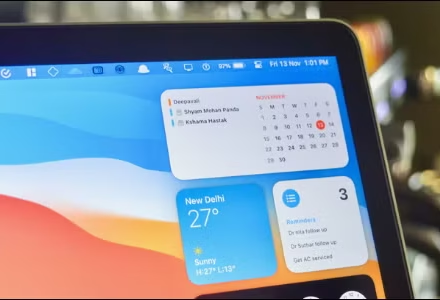
How to Add and Customize Widgets on Your Mac

Widgets on Mac provide at-a-glance information and quick app access directly from your desktop or Notification Center. With macOS Sonoma and later, you can place interactive widgets anywhere on your screen. Here’s how to master widget management for a more efficient workflow.
Adding Widgets to Your Desktop
-
Right-click on any empty area of your desktop
-
Select “Edit Widgets” from the context menu
-
The Widget Gallery will appear showing available widgets
-
Browse by category or use the search bar
-
Click and drag your chosen widget onto the desktop
Tip: Widgets become semi-transparent when not in use, minimizing distraction while keeping information accessible.
Using iPhone/iPad Widgets on Mac
Thanks to Continuity, you can use widgets from your iOS apps even if they’re not installed on your Mac:
-
Ensure your iPhone/iPad is nearby and on the same Wi-Fi
-
Open the Widget Gallery on your Mac
-
Scroll to the “From iPhone” or “From iPad” section
-
Drag iOS widgets directly to your Mac desktop
Customizing Widget Appearance
Most widgets offer size and configuration options:
-
Right-click any widget and select “Edit Widget”
-
Choose from available sizes (small, medium, large)
-
Configure specific settings (city for Weather, list for Reminders)
-
Click “Done” to save changes
Managing and Removing Widgets
To keep your desktop organized:
-
Right-click the unwanted widget
-
Select “Remove Widget”
-
Alternatively, open Widget Gallery and click the minus (-) icon
Troubleshooting Common Issues
Widgets Not Loading?
-
Check for macOS updates in System Settings > General > Software Update
-
Restart your Mac
-
Verify Continuity is enabled in System Settings > General > AirDrop & Handoff
Widgets Not Updating?
-
Ensure you have active internet connection
-
Check app-specific permissions in System Settings > Privacy & Security
FAQ
Do widgets impact Mac performance?
Modern widgets are optimized and consume minimal resources. Only excessive third-party widgets might affect performance.
Can I use widgets in full-screen apps?
No, widgets are only visible on the desktop or in Notification Center.
Are all iPhone widgets available on Mac?
Most are, but some requiring iPhone-specific hardware (like Health data) may have limited functionality.
How many widgets can I add?
There’s no strict limit, but practical desktop space is your main constraint.
Best Practices
-
Place frequently needed widgets (Calendar, Weather) on desktop
-
Use Notification Center for less-critical widgets
-
Group related widgets together
-
Regularly review and remove unused widgets
-
Take advantage of interactive widgets that allow quick actions
Conclusion
Widgets transform your Mac into a dynamic information hub, providing immediate access to vital data without opening applications. By strategically placing, customizing, and managing your widgets, you can create a personalized workspace that enhances both productivity and convenience. The integration with iOS devices further expands your options, making your Apple ecosystem more connected than ever.