Ghostface AI Trend: How to Create the Viral Scream-Inspired Photo with Google Gemini
Your TikTok feed has probably shown you a dreamy pink bedroom portrait with a masked figure lurking in the doorway behind the girl. That’s the Ghostface AI trend, and you can make your own in about five minutes, completely free.
This guide walks you through the whole process with Google Gemini, including the exact prompt to copy.
What Is the Ghostface AI Trend?
The Ghostface AI trend mixes two worlds that shouldn’t work together but do: nostalgic Y2K girly style and the creepy atmosphere of the Scream movies. People use AI image generators like Google Gemini to turn their selfies into soft, pink-toned portraits, with a dimly lit Ghostface standing quietly in the background.
Why Did This Trend Go Viral?
It comes down to contrast. On one side you get satin sheets, butterfly clips, glossy lips, and 90s magazines. On the other, a killer watching from the shadows. That mix makes people stop scrolling, and each image feels like a single frame from a horror movie. It’s also easy to recreate, which is why thousands of people jumped in.
How to Create Your Ghostface AI Image (Step by Step)
Here’s how to create your own viral Ghostface AI image using Google Gemini:
1. Download Google Gemini. Install the app from the App Store (iOS) or Google Play (Android). If you already have it, update it to the latest version.
2. Sign in. Log in with your Google account. You’ll need it to use the image generation features.
3. Open the image creation tool. Tap Tools, then choose Create images.
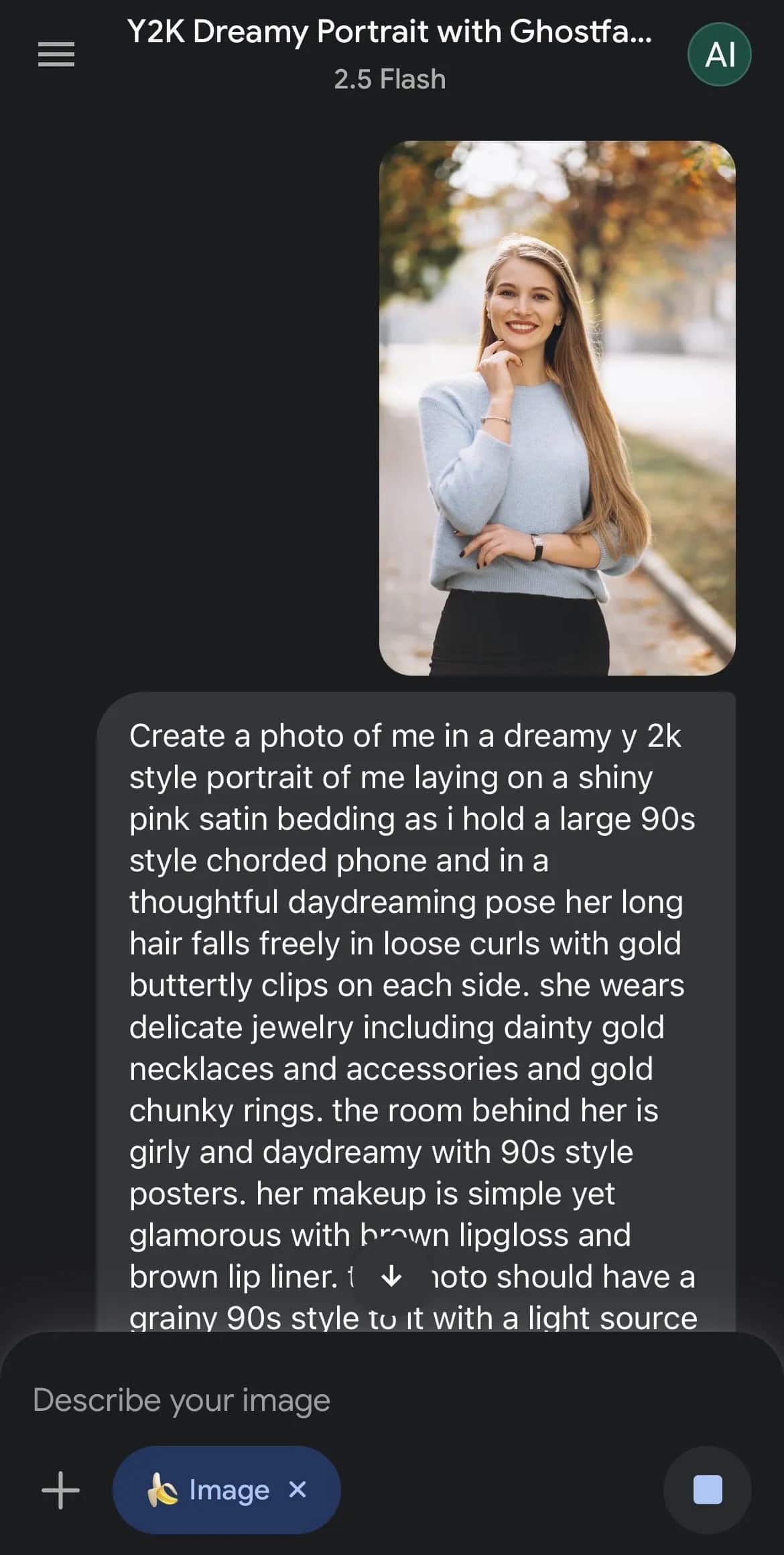
4. Upload your photo. Tap the + button, select Gallery, and pick a clear photo of yourself. Good lighting and a visible face give the best results.
5. Paste the Ghostface prompt. Copy the prompt below and paste it into the text box. It’s written to capture the exact look of the trend.
6. Generate. Tap Try now or Generate. Gemini will combine your photo and the prompt to create your personalized image.
The Ghostface AI Prompt
Create a photo of me in a dreamy Y2K style portrait, laying on shiny pink satin bedding while I hold a large 90s style corded phone in a thoughtful, daydreaming pose. Her long hair falls freely in loose curls with gold butterfly clips on each side. She wears delicate jewelry, including dainty gold necklaces, accessories, and chunky gold rings. The room behind her is girly and daydreamy, with 90s style posters. Her makeup is simple yet glamorous, with brown lip gloss and brown lip liner. The photo should have a grainy 90s look, lit by a lamp in a dimly lit room at night. A bowl of popcorn rests beside her near some 90s style magazines. The Ghostface killer stands behind her in the doorway of a dimly lit hallway, staring at her, his body only faintly lit. The background behind him should be slightly dark and ominous.
(I fixed a few typos and the he/her mix-ups in the original prompt. If you’d rather keep it exactly as it was, that’s fine too.)
Pro Tip: Don’t settle for the first result. AI image generators give different results every time, so try a few generations or tweak the wording slightly.
Tips for Better Results
- Use a sharp, well-lit photo. The better your starting image, the better the output.
- Try different photos. Different angles and expressions can change the whole look.
- Make Ghostface more visible. If he’s hard to spot, add “more prominent” to the Ghostface part of the prompt.
- Change the color theme. Swap “pink satin” for any color you like, such as red, purple, or black.
What Your Final Image Should Look Like
A good result has a dreamy pink Y2K mood, 90s details like the corded phone and posters, and Ghostface lurking quietly in the dark background.
Quick Facts
| Time needed | 5–10 minutes |
| Cost | Free |
| Platform | Google Gemini app |
| Style | Y2K aesthetic + thriller |
Best Alternatives to Google Gemini
If Gemini isn’t working for you, the same prompt works with these tools:
- Midjourney (paid)
- DALL·E 3 (through ChatGPT Plus)
- Bing Image Creator (free)
- Stable Diffusion (more advanced)
How to Post Your Ghostface AI Image on TikTok
To get more views and engagement:
- Use trending nostalgic or horror-themed audio
- Add the hashtag #GhostfaceAI
- Show a before-and-after of your original photo and the AI result
- Put the prompt in your caption so others can try it
Frequently Asked Questions
Is the Ghostface AI trend free?
Yes. You can create it for free in the Google Gemini app, though usage limits may apply.
Which AI tool is best for the Ghostface trend?
Google Gemini is the easiest option, but Midjourney, DALL·E 3, and Bing Image Creator can also produce great results.
Why doesn’t Ghostface show up in my image?
Add “more prominent” to the Ghostface section of the prompt, or generate again.
Can I change the color from pink?
Yes. Replace “pink satin” with any color you like.