

Fix iOS 26.1 Lag & Stutter When Swiping from Widgets to Home Screen
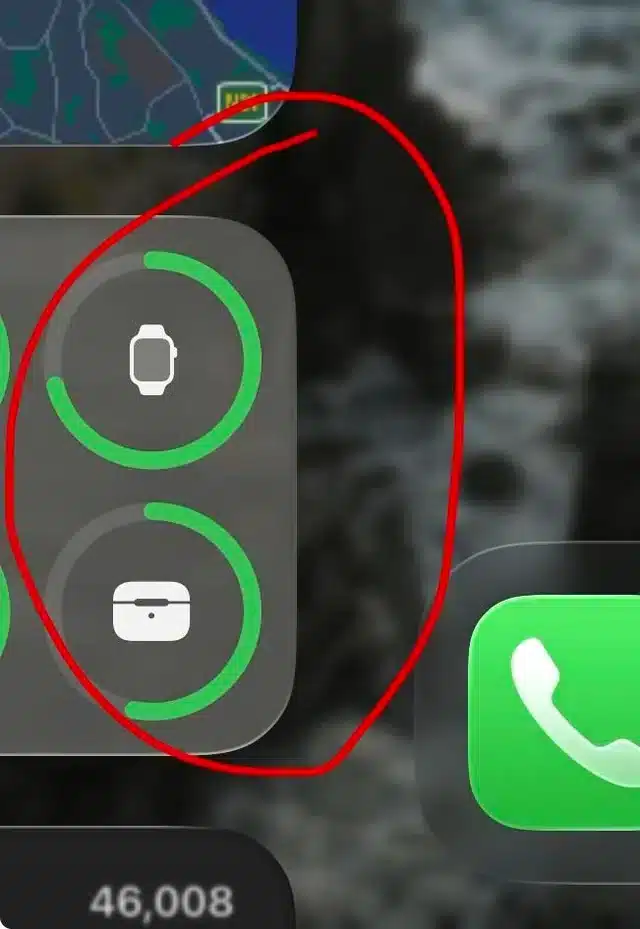
The iOS 26 update introduced exciting new features, but for many users, it also brought a frustrating performance bug: a noticeable stutter or lag when swiping from the Today View (widget screen) back to the Home Screen.
This hiccup makes the otherwise smooth 120Hz ProMotion display feel sluggish. If you’re experiencing this, you’re not alone. The good news is that this is almost certainly a software optimization issue, not a hardware problem, and there are several effective fixes you can try right now.
Why This Stutter Happens
The lag is likely due to the system struggling to manage the graphical load. The Today View has to render live content from multiple widgets while simultaneously animating a complex transition back to the Home Screen. This can create a momentary resource bottleneck, causing the animation to drop frames and feel jerky.
Solutions to Fix the Swipe Lag
Try these solutions in order, starting with the simplest and most effective.
1. Simplify Your Widgets (The Most Effective Fix)
Too many active, data-heavy widgets are the most common culprit. Reducing this load often provides an immediate improvement.
-
Remove Unnecessary Widgets:
-
Swipe right to open your Today View.
-
Tap and hold on any widget until the icons jiggle.
-
Tap the minus (-) sign on any widgets you don’t absolutely need and confirm removal.
-
-
Replace Complex Widgets: If you must keep a widget, try replacing a large, third-party widget with a smaller, simpler one—preferably an Apple stock widget (like Weather or Calendar), which are generally more optimized.
Pro Tip: Try removing all widgets as a test. If the stutter disappears, you’ve confirmed the cause. You can then add back your essential widgets one by one.
2. Adjust Visual & Motion Settings
iOS’s visual effects are beautiful but demanding. Toning them down can free up system resources for smoother transitions.
-
Reduce Transparency:
-
Go to Settings > Accessibility > Display & Text Size.
-
Toggle on “Reduce Transparency.” This simplifies the blurry glass effects, reducing the GPU load.
-
-
Reduce Motion:
-
Go to Settings > Accessibility > Motion.
-
Toggle on “Reduce Motion.” This replaces the zooming animations with simpler cross-fades, which are much less resource-intensive.
-
3. Perform Basic System Resets
Background glitches can contribute to overall system lag. A quick reset can clear these out.
-
Force Restart Your iPhone: This clears the device’s temporary memory (RAM) without deleting any data. The method varies by model, but generally involves quickly pressing and releasing the Volume Up, then Volume Down button, then holding the Side button until you see the Apple logo.
-
Check for Rogue Profiles: Sometimes, VPN or configuration profiles can interfere with system performance.
-
Go to Settings > General > VPN & Device Management. If you see a VPN or profile you don’t trust or need, remove it.
-
FAQ
Q: Is this lag only on older iPhones?
A: No. Users are reporting this stutter even on the latest iPhone 16 Pro and Pro Max models, confirming it’s a software optimization issue in iOS 26.1, not a hardware limitation.
Q: Will Apple fix this in an update?
A: Very likely. Widespread performance hiccups after a major iOS update are common and are typically addressed in subsequent point releases (like iOS 26.1.1 or 26.2). The fixes above are effective workarounds until an official patch arrives.
Q: Could my battery health be causing this?
A: While poor battery health can cause overall system throttling, this specific, localized stutter is almost always related to the graphical and widget issues described above.
Summary: Quick Fix Checklist
-
Remove Widgets: Declutter your Today View. This is the #1 fix.
-
Reduce Effects: Enable Reduce Motion and Reduce Transparency in Accessibility settings.
-
Force Restart: Reboot your iPhone to clear temporary glitches.
By following these steps, you can significantly reduce or eliminate the annoying swipe lag and restore the smooth, fluid feel to your iPhone’s interface.


