iOS 18 No SIM Card Error – Quick Fix Guide
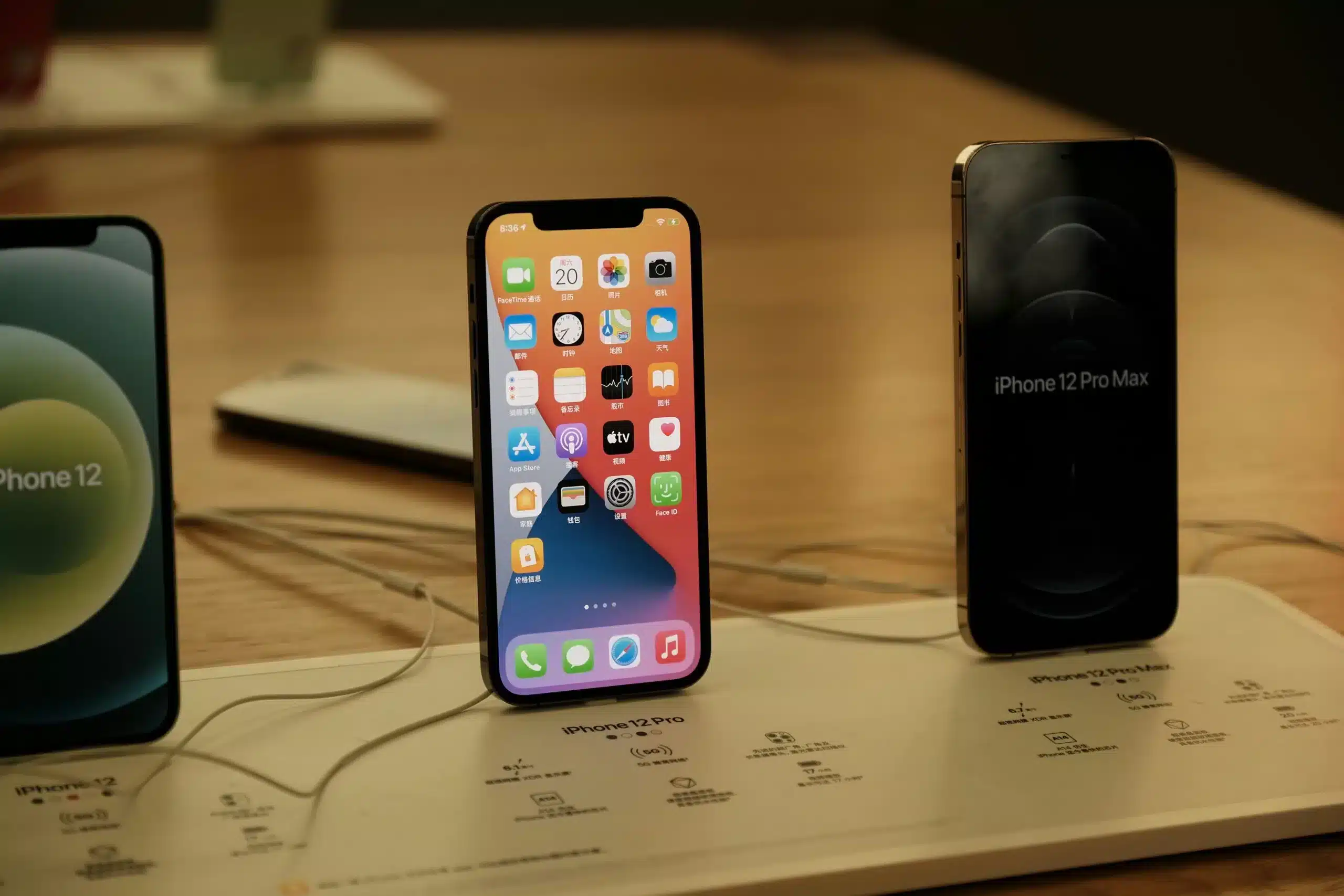
iOS 18 No SIM Card Installed Error – How to Restore Your Connection
After updating to iOS 18, many iPhone users encounter the frustrating ‘No SIM Card Installed’ message that blocks all cellular connectivity. This software conflict typically occurs when the operating system fails to properly communicate with your SIM card during the update process, rather than indicating physical damage to the SIM or tray. The good news is that this issue can usually be resolved through a series of straightforward troubleshooting steps that don’t require technical expertise or expensive repairs.
Simple Steps to Fix the No SIM Error
- Toggle Airplane Mode: Swipe down from the top-right corner (or up from the bottom on older models) to open Control Center, tap the Airplane Mode icon, wait 10 seconds, then tap it again to disable. This forces your iPhone to reestablish all wireless connections including cellular service.
- Restart Your iPhone: Press and hold the power button along with either volume button until the slider appears, then drag to power off. Wait 30 seconds before turning your device back on. This clears temporary system files that may be causing the conflict.
- Check for Carrier Settings Update: Navigate to Settings > General > About while connected to Wi-Fi. If a carrier settings update is available, your phone will prompt you to install it automatically.
- Reseat Your SIM Card: Power off your iPhone completely, use the SIM ejector tool to remove the SIM tray, gently clean the SIM card with a soft cloth, then reinsert it properly before powering back on.
- Reset Network Settings: Go to Settings > General > Transfer or Reset iPhone > Reset > Reset Network Settings. This erases saved Wi-Fi passwords but often resolves deep software conflicts affecting cellular connectivity.
Frequently Asked Questions
FAQ
Why does the ‘No SIM Card’ error appear after iOS 18?
This error typically results from a software conflict during the iOS 18 update process where the system fails to properly initialize SIM card communication. It’s rarely caused by actual SIM card or hardware damage.
Can I fix this without restarting my iPhone?
Yes, toggling Airplane Mode is often the fastest solution and can restore cellular service within seconds. However, if this doesn’t work, a restart is usually the next effective step.
Is this a SIM card problem or software issue?
In most iOS 18 cases, this is a software-related problem rather than a faulty SIM card. The error occurs because the updated operating system has temporary communication issues with the SIM card.
Read the full guide: “No SIM Card Installed” Error After iOS 18 Update? Here’s the Fix